Windows 8.1 透過「釘選」功能,讓高頻 App 直接顯示於開始畫面磚區或桌面工作列,實現零點擊/單點擊啟動。操作直覺簡單,三步完成。
釘選步驟
- 從螢幕中央向上滑動(滑鼠:點擊左下角箭頭)開啟「應用程式檢視」。
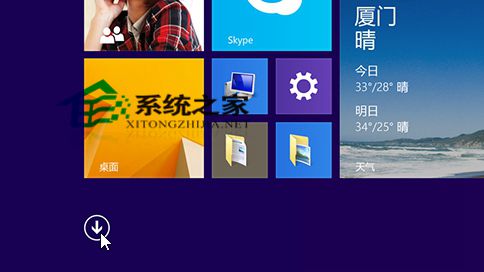
- 長按/右鍵點擊目標 App(可多選)。
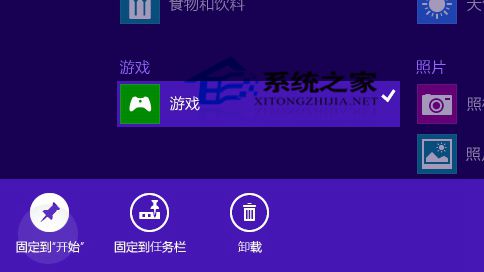
- 點擊下方應用列的「釘選到『開始』畫面」或「釘選到工作列」。
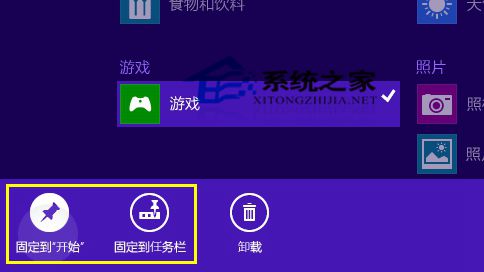
- 釘選的 App 將出現在開始畫面最右側或工作列最右端,可拖曳調整順序。
進階技巧:快速搜尋 App
在開始畫面或應用程式檢視中直接鍵入 App 名稱,右側即時顯示搜尋結果,無需點擊搜尋鈕,極大加速定位低頻 App。
管理建議
- 工作列僅釘選「每日必用 5-8 支 App」(瀏覽器、通訊軟體、IDE、檔案總管等)。
- 開始畫面以分組管理:將同類 App 歸類並命名(辦公、設計、系統、娛樂)。
- 定期檢視移除低頻釘選,保持介面精簡。