Win10檔案總管「主頁」(快速存取)會自動記錄常用資料夾、近期檔案,久而久之列表冗長且洩露隱私。透過命令列清除AutomaticDestinations資料夾內*.automaticDestinations-ms檔案,可一鍵恢復出廠預設狀態。
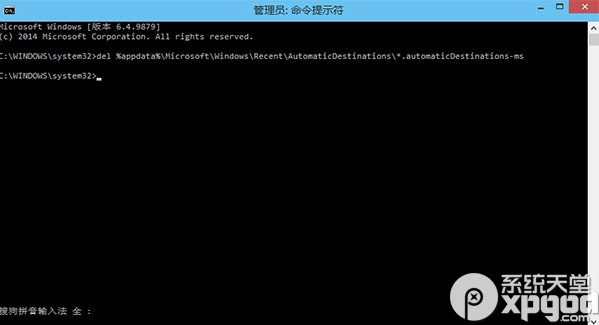
cmd → 右鍵「命令提示字元」→ 「以系統管理員身分執行」。del %appdata%\Microsoft\Windows\Recent\AutomaticDestinations\*.automaticDestinations-ms
%appdata%\Microsoft\Windows\Recent\AutomaticDestinations\ 存放每個應用程式的快速存取歷史(二進位結構化儲存)。*.automaticDestinations-ms 為各應用對應檔案(如1b4dd67f29cb1962.automaticDestinations-ms對應檔案總管)。%appdata%\Microsoft\Windows\Recent\CustomDestinations\,不會被清除。*.customDestinations-ms一併刪除。User Configuration\Administrative Templates\Windows Components\File Explorer\Turn off recent files/folders in Quick Access 可永久停用記錄功能。一條命令,還給檔案總管乾淨隱私的主頁。