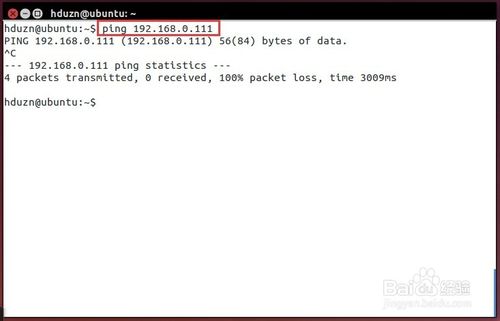
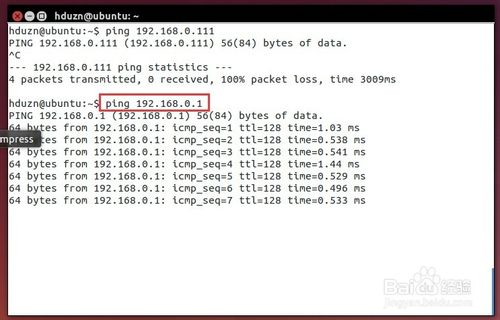
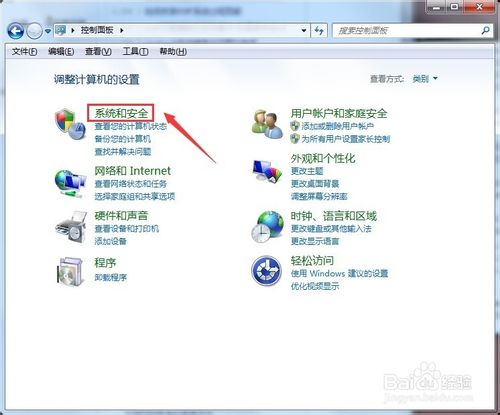
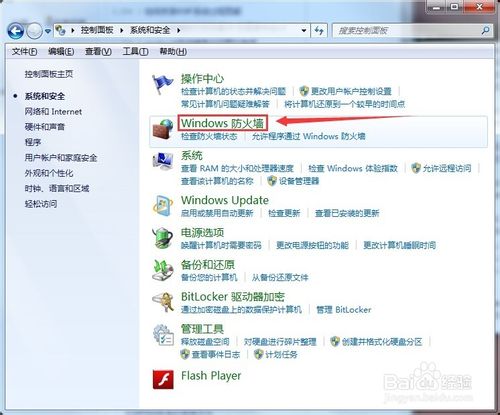
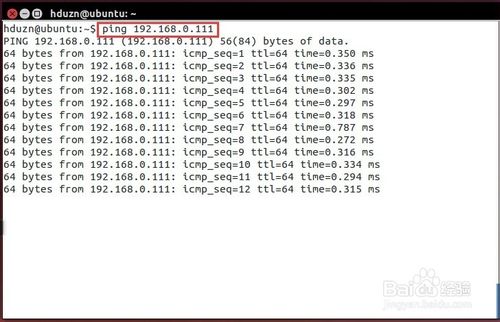
Win7 預設防火牆規則封鎖入站 ICMPv4 回應請求,導致本機可 Ping 通虛擬機,但虛擬機無法 Ping 通本機。透過「高階安全性 Windows 防火牆」啟用「檔案和印表機共用 (回應要求 - ICMPv4-In)」規則即可雙向互通。
ipconfig → 192.168.0.111ifconfig → 192.168.0.101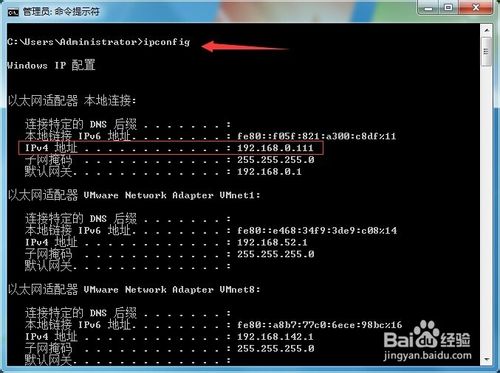
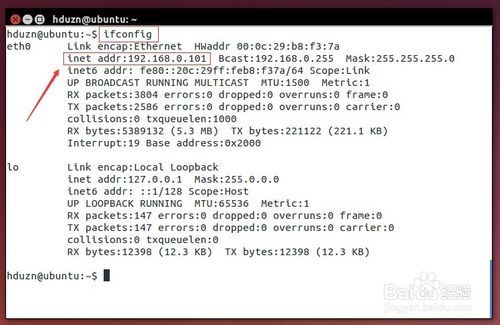
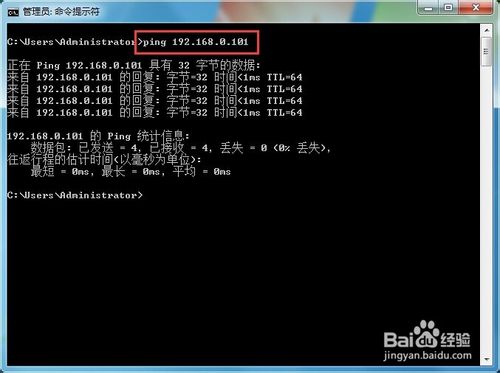
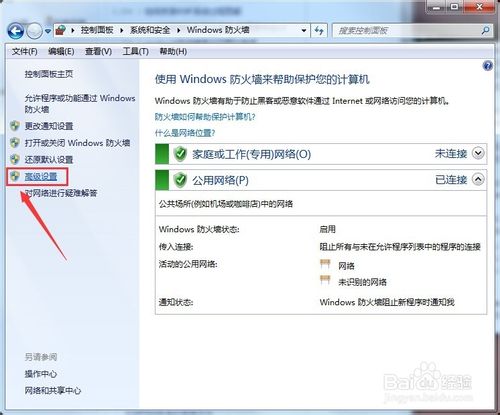
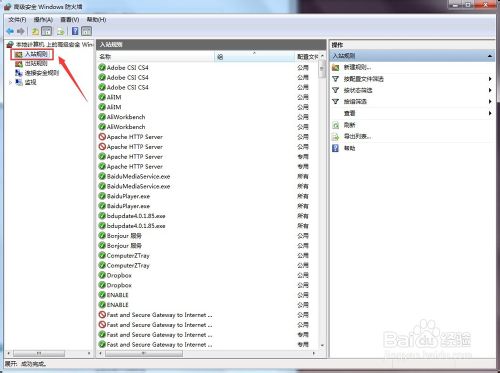
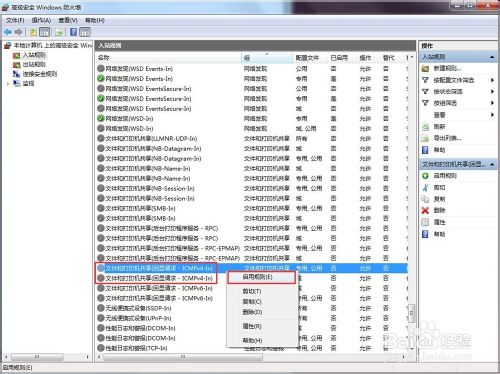

netsh advfirewall firewall set rule name="檔案和印表機共用 (回應要求 - ICMPv4-In)" new enable=yesifconfig 或 ip a,非 Windows 的 ipconfig。升級 Windows 10 後 Office (Word/Excel/PPT) 無法開啟?兩招快速修復
Win10 chkdsk 指令完整參數與使用教學:新增線上掃描、效能模式、離線修復
Windows XP 系統何時需要關閉防火牆?三大操作場景建議暫時停用
Win7 全螢幕看影片上下出現黑邊?註冊表修改 Scaling 數值 4→3 徹底去黑邊
Windows 7 調整桌面圖示字體大小:視窗色彩與外觀進階設定
Windows 10 手機版真機運行圖賞:介面、Cortana、通知中心、郵件、日曆、鍵盤定位點
Win10 RS1 分支 Windows Server 2016 TP4 14267 介面截圖曝光:比桌面版更穩定效能更強