Windows XP Windows 7 Windows 2003 Windows Vista Windows 綜合教學 Linux 系統教學
Windows 10 Windows 8 Windows 2008 Windows NT Windows Server 電腦軟體教學
您现在的位置: Windows教程網 >> Windows教程 >  >> Windows 綜合教學 >> 關於 Windows

Windows hosts 檔案被惡意程式劫持怎麼辦?手動修復 + 批次檔快速編輯 + 鎖定檔案防範

編輯:關於 Windows

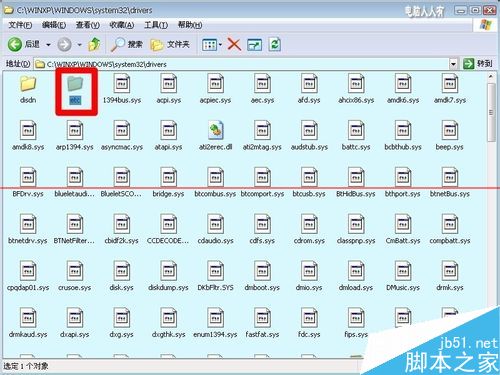
hosts 檔案 (C:\Windows\System32\drivers\etc\hosts) 權限高於 DNS,常被病毒/木馬/流氓軟體劫持,將正常網域導向惡意 IP 或本機 (127.0.0.1),導致無法存取正常網站、彈出廣告頁面。
劫持現象與原理

  • 瀏覽器輸入正常網址卻開啟惡意/廣告頁面。
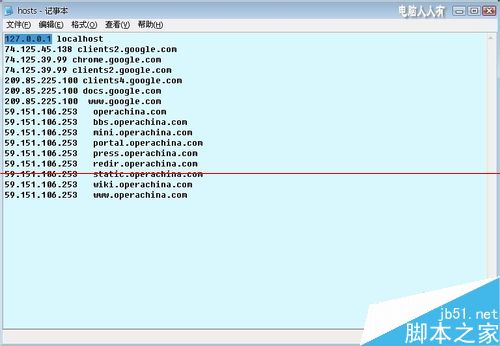
  • hosts 檔案被寫入大量非授權域名對應關係 (指向 127.0.0.1 或 0.0.0.0)。

hosts 檔案位置

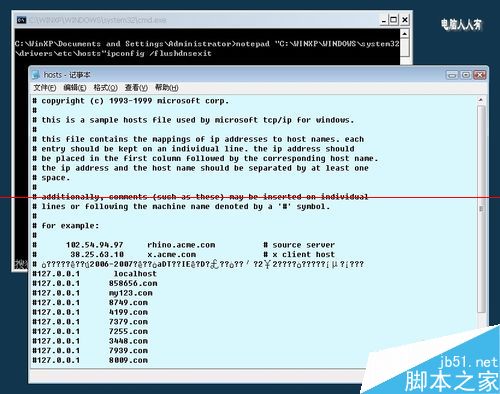
被劫持的 hosts 內容

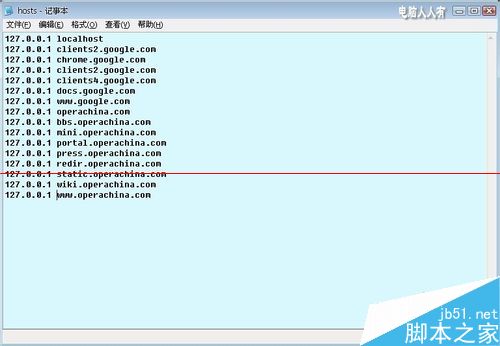
修復後 hosts 封鎖惡意網站

修復與防範完整方案

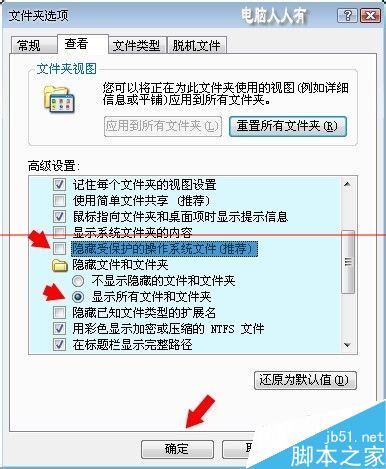
  1. 顯示隱藏系統檔案: 控制台 → 資料夾選項 → 檢視 → 取消勾選「隱藏受保護的作業系統檔案」→ 選擇「顯示隱藏的檔案、資料夾及磁碟機」。
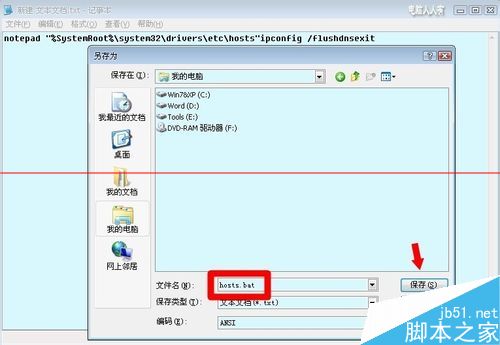
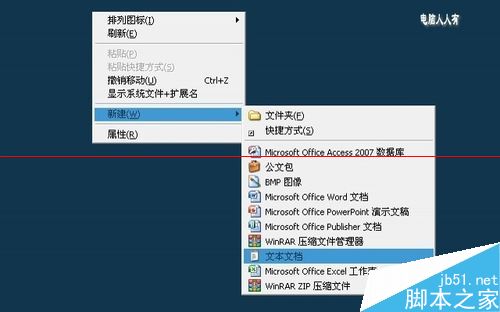
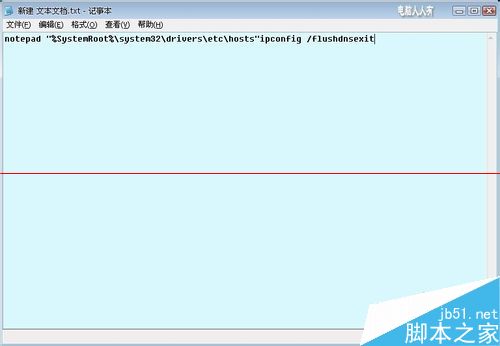
  2. 建立批次檔快速編輯 hosts: 桌面新建文字文件,貼上指令:
    notepad "%SystemRoot%\system32\drivers\etc\hosts"
    ipconfig /flushdns
    exit
    另存為 hosts.bat,雙擊即以記事本開啟 hosts 並自動清除 DNS 快取。
  3. 清理劫持內容: 執行 hosts.bat,刪除所有非授權行,僅保留 127.0.0.1 localhost,儲存。
  4. 鎖定檔案防再次劫持 (進階): 修復後以系統管理員身分執行 CMD:
    attrib +s +h +r "%SystemRoot%\system32\drivers\etc\hosts"
    設定系統、隱藏、唯讀屬性,增加惡意程式修改難度。

顯示隱藏系統檔案設定

新建文字文件

批次檔內容

另存為 hosts.bat

執行 hosts.bat 編輯

定期檢查 hosts 檔案、使用可信殺毒軟體即時防護、不隨意執行來源不明程式,是防範劫持根本之道。

Copyright © Windows教程網 All Rights Reserved