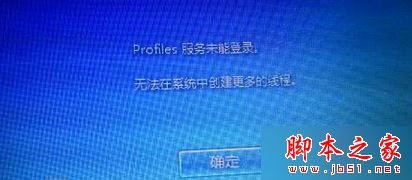
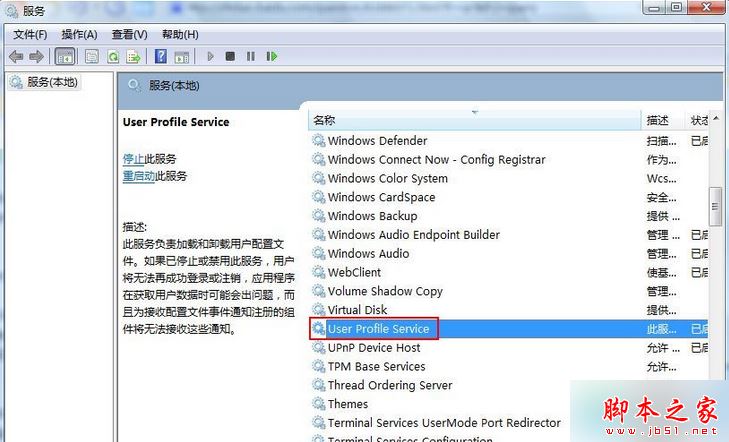
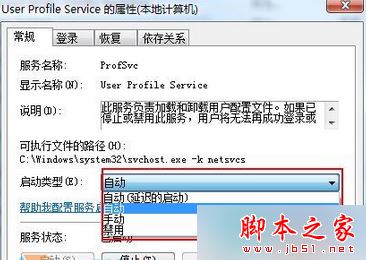
Windows 7 開機卡在歡迎畫面,彈出 「使用者設定檔服務登入失敗,無法在系統中建立更多執行緒」。此為 User Profile Service 服務未啟動 或 使用者設定檔 (NTUSER.DAT) 損毀 導致。提供兩階段解決方案。
services.msc → Enter 開啟服務管理員。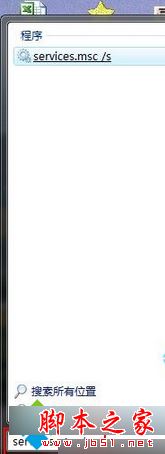
若上述兩方案均無效,建議:
• 執行 sfc /scannow 修復系統檔案。
• 檢查硬碟健康度 (CrystalDiskInfo)。
• 最終手段:備份資料 → 重裝系統。
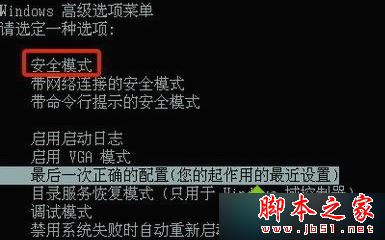
核心邏輯: 先修服務 (User Profile Service 未啟動) → 再換設定檔 (NTUSER.DAT 損毀) → 最後修系統/換硬碟/重裝。層層遞進,避免誤判。
Win7 BitLocker 磁碟密碼忘記?用 manage-bde 指令輸入復原金鑰解鎖
Windows 8 設定自動關機三大法:任務排程器、命令提示字元、第三方工具
XP系統插耳機無聲音?Realtek高清音頻配置禁用前面板檢測即可修復
Win8 Wi-Fi/飛行模式開關消失變「連線不可用」?裝置管理員啟用無線網卡即可恢復
Windows 10 任務列時鐘顯示秒數與農曆日期、設定提醒完整教學
Windows 10 將「Windows 相片檢視器」設為預設看圖程式,取代 Metro 風格照片應用