Win10 環境下安裝《守望先鋒》反覆失敗,主因通常是 Battle.net 客戶端殘留資料衝突或權限不足。透過徹底清除戰網資料、重新安裝並設定相容性/管理員權限即可解決。
Battle.net.exe / Agent.exe 所有進程。C:\Program Files (x86)\Battle.net)C:\Users\<用戶名>\AppData\Local\Battle.net、\Roaming\Battle.netBattle.net Launcher.exe → 右鍵「內容」→「相容性」→ 勾選「以系統管理員身分執行此程式」。Battle.net.7208 資料夾(版本號可能不同),對 Battle.net Helper.exe 與 Battle.net.exe 同樣設定:相容模式選「Windows 8」+ 勾選「以系統管理員身分執行」。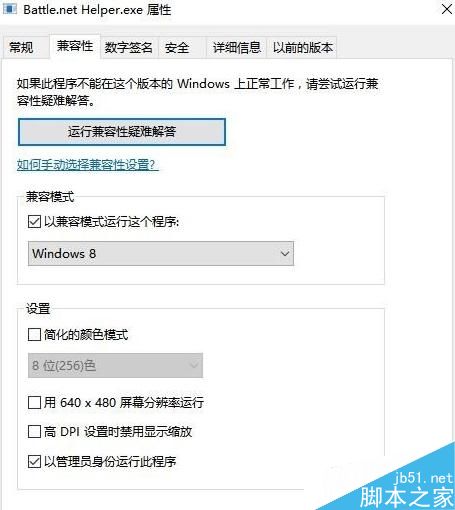
Win10 對舊版應用程式的 UAC 虛擬化與檔案系統重導向機制較嚴格,Battle.net 早期版本未正確處理高權限寫入,導致安裝/更新失敗。強制管理員權限可繞過虛擬化直接存取實體路徑。