Windows XP Windows 7 Windows 2003 Windows Vista Windows 綜合教學 Linux 系統教學
Windows 10 Windows 8 Windows 2008 Windows NT Windows Server 電腦軟體教學
您现在的位置: Windows教程網 >> Windows教程 >  >> Windows 綜合教學 >> 關於 Windows

Windows 桌面、工作列消失?重新啟動 explorer.exe 秒修復

編輯:關於 Windows

Windows 8.1/10/11 偶發桌面圖示、工作列、開始選單、桌面背景全部消失,只剩藍色/黑色背景,這是 Windows 檔案總管 (explorer.exe) 當掉或異常結束。重新啟動 explorer.exe 即可瞬間恢復,無需重開機。

方法一:執行對話框啟動 (最快)

  1. 按 Win+R 開啟「執行」。
  2. 輸入 explorer → Enter。
  3. 桌面、工作列、開始選單立即重現。

執行 explorer

方法二:工作管理器執行新工作

  1. 按 Ctrl+Alt+Del → 選擇「工作管理員」。
  2. 點選「檔案」→ 「執行新工作」。
  3. 輸入 explorer → 勾選「以系統管理員權限建立此工作」 (可選) → 「確定」。
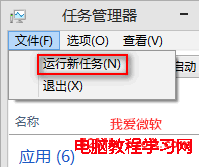
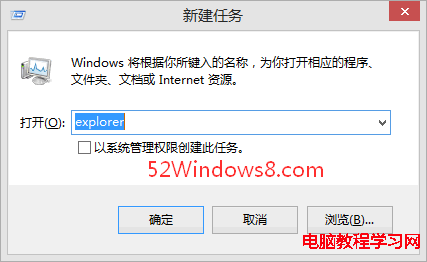
工作管理器-執行新工作

輸入 explorer

方法三:命令列 / PowerShell (進階)

taskkill /f /im explorer.exe
start explorer.exe

或 PowerShell:Stop-Process -Name explorer -Force; Start-Process explorer.exe

常見觸發原因

  • 第三方殼層擴充套件 (右鍵選單工具、雲端同步客戶端) 衝突導致 explorer 崩潰。
  • 顯示卡驅動程式更新後未重開機、或驅動不穩定。
  • 系統資源耗盡 (記憶體不足、CPU 100%) 導致 explorer 被終止。
  • 登錄損毀、惡意軟體修改殼層啟動項目。

根本解決建議

  • 若頻繁發生,檢查事件檢視器「應用程式」日誌,尋找 Application Error 來源 explorer.exe 的錯誤模組 (如 ntdll.dll, shell32.dll, 第三方 DLL)。
  • 使用 sfc /scannow、DISM /Online /Cleanup-Image /RestoreHealth 修復系統檔案。
  • 清理開機自啟項目、停用可疑殼層擴充套件 (可用 ShellExView 工具)。
  • 更新顯示卡、晶片組驅動至最新穩定版。

記住 Win+R → explorer,關鍵時刻 3 秒搞定桌面消失危機。
Copyright © Windows教程網 All Rights Reserved