Windows XP Windows 7 Windows 2003 Windows Vista Windows 綜合教學 Linux 系統教學
Windows 10 Windows 8 Windows 2008 Windows NT Windows Server 電腦軟體教學
您现在的位置: Windows教程網 >> Windows教程 >  >> Windows 綜合教學 >> 關於 Windows

Win10 應用商店無法下載/更新?四大官方修復方案徹底解決

編輯:關於 Windows

Microsoft Store(應用商店)無法下載、更新應用、卡在「取得授權」或報錯碼(0x80070005、0x80131500 等)是常見問題。微軟官方提供四層遞進修復方案,本文整理圖文教學,從輕量到重度依序嘗試。

方案一:重新登入 Microsoft 帳號(最輕量)

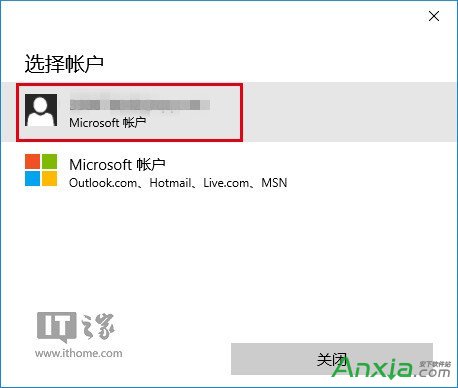
  1. 開啟 Microsoft Store → 右上角個人圖示 → 選擇帳號 → 「登出」。
  2. 再次點擊個人圖示 → 「登入」 → 選擇原帳號或輸入帳密登入。
  3. 嘗試下載/更新應用。

Store 點擊個人圖示

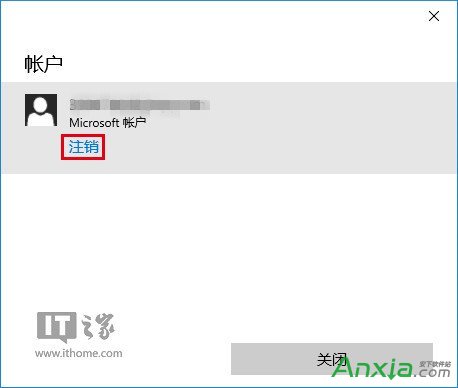
進入帳戶頁面

登出帳號

重新登入帳號

方案二:重置 Store 快取 (wsreset.exe)

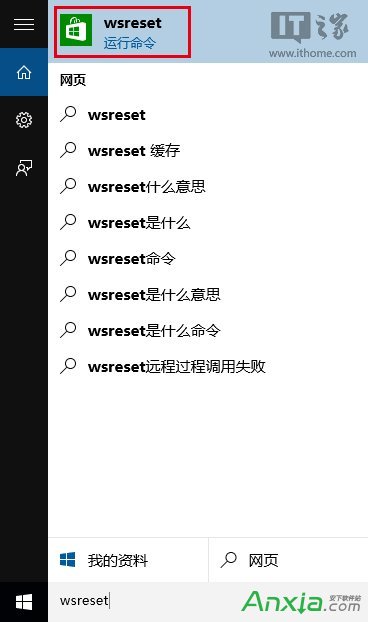
  1. 按 Win+R → 輸入 wsreset → 確定。
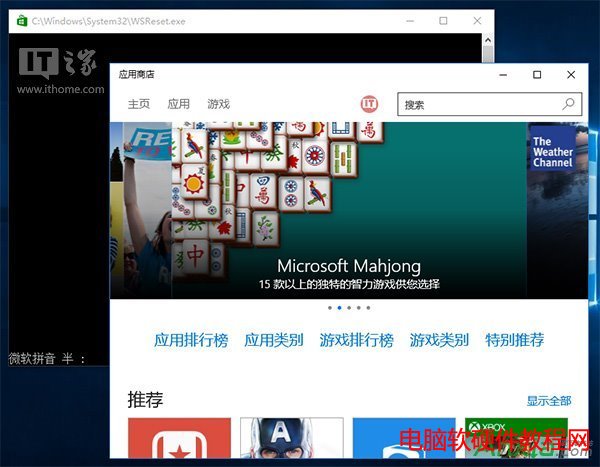
  2. 命令提示字元視窗閃過,Store 自動開啟並完成快取重置。
  3. 嘗試下載/更新。

執行 wsreset

Store 自動開啟

方案三:執行「疑難排解」自動修復

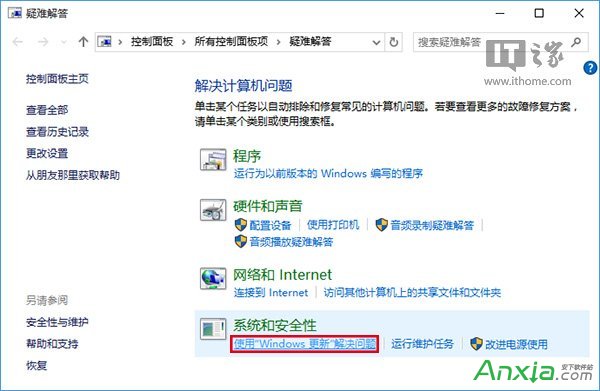
  1. 設定 → 系統 → 疑難排解 → 其他疑難排解 → 「Windows 市集應用程式」→ 「執行」。
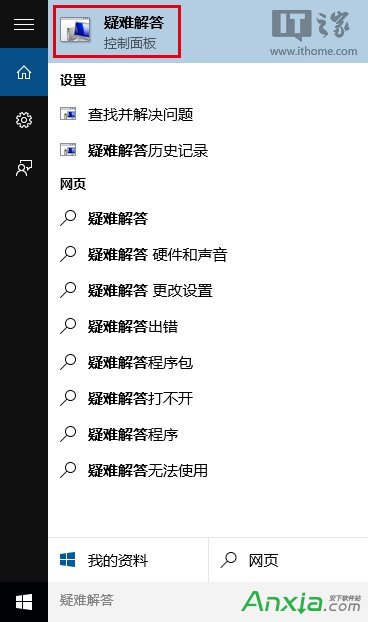
  2. 或搜尋「疑難排解」→「其他疑難排解」→「Windows 市集應用程式」。
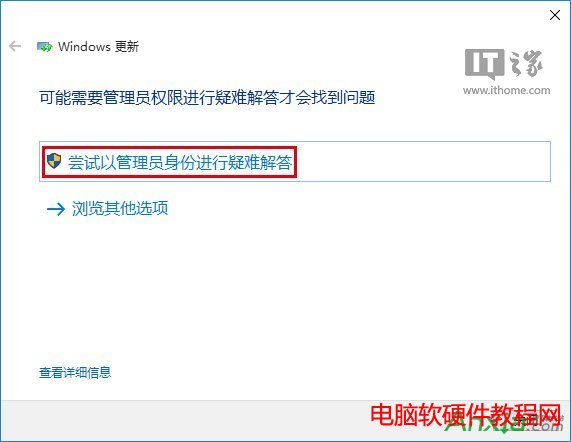
  3. 依提示操作,若要求管理員權限請選「嘗試以管理員身分執行」。
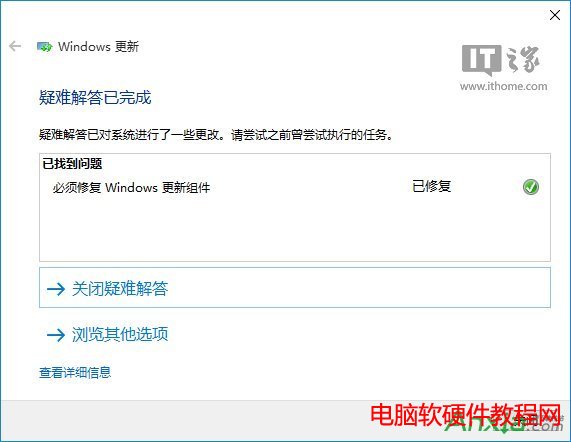
  4. 完成後查看結果報告,嘗試 Store 操作。

搜尋疑難排解

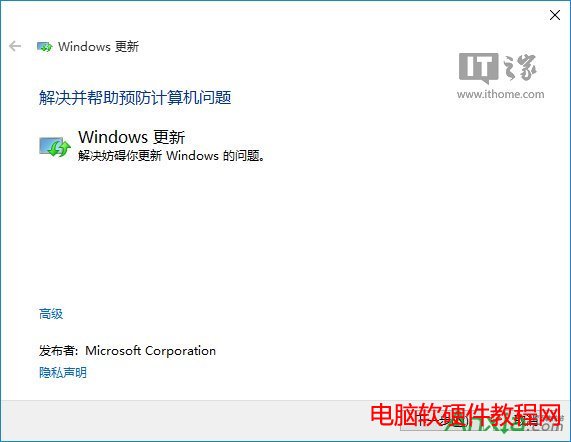
選擇 Windows Update 疑難排解

以管理員身分執行

疑難排解進行中

疑難排解結果

方案四:重置 Windows Update 元件(核彈級,前三招無效才用)

原理:Store 依賴 Windows Update 服務下載授權與套件,重置 Update 元件可修復底層下載管道。

  1. 以管理員身分執行命令提示字元(或 PowerShell)。
  2. 依序執行以下指令(每行按 Enter):
net stop wuauserv
net stop bits
net stop cryptsvc
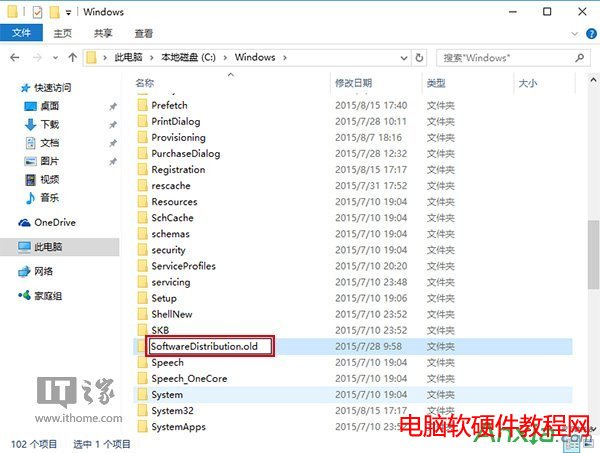
ren C:\Windows\SoftwareDistribution SoftwareDistribution.old
ren C:\Windows\System32\catroot2 catroot2.old
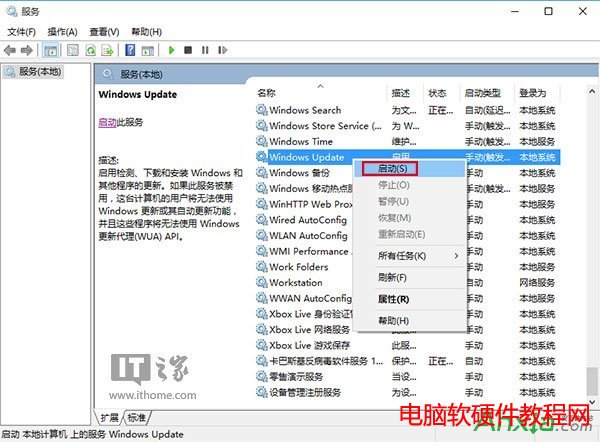
net start wuauserv
net start bits
net start cryptsvc
  1. 重新開機後開啟 Store 測試。

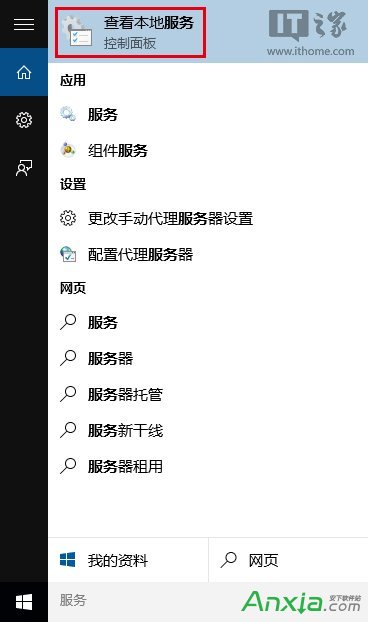
服務管理員停止 Wuauserv

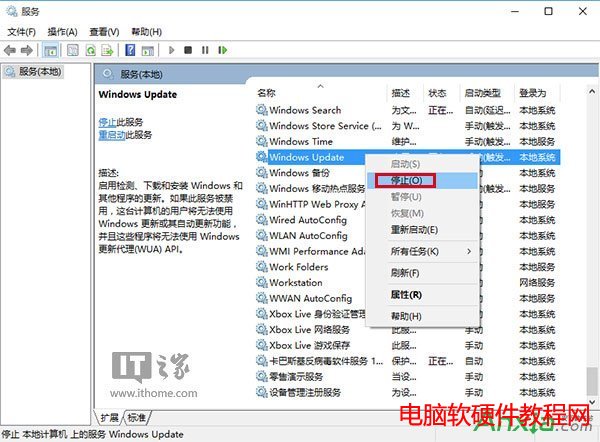
停止 Windows Update 服務

重命名 SoftwareDistribution

重新啟動 Windows Update 服務

進階補充:PowerShell 重新註冊 Store(方案二強化版)

以管理員身分執行 PowerShell:

Get-AppXPackage -AllUsers -Name Microsoft.WindowsStore | Foreach {Add-AppxPackage -DisableDevelopmentMode -Register "$($_.InstallLocation)\AppXManifest.xml"}

若報錯請嘗試:wsreset -i(離線重置)。

避坑指南

  • 確認系統時間/時區正確(錯誤時間導致 SSL/TLS 驗證失敗)。
  • 檢查 Proxy/VPN 設定,Store 不支援透過某些 Proxy 連線。
  • 企業環境請確認群組原則未停用「關閉存取市集」或「關閉自動更新市集應用」。
  • 若特定應用報錯,嘗試在網頁版 Store apps.microsoft.com/store 安裝。

依序嘗試四大方案,95% 以上 Store 問題可獲解決;若仍失效,建議備份資料後執行「重設此電腦」(保留個人檔案)。

Copyright © Windows教程網 All Rights Reserved