Windows 8 內建磁碟清理功能固然好用,但若想更徹底、自動化清除暫存檔、日誌、快取等垃圾檔案,自製批次檔(.bat)是輕量級的好選擇。本文提供現成腳本碼與製作步驟,雙擊即執行,無需安裝第三方軟體。
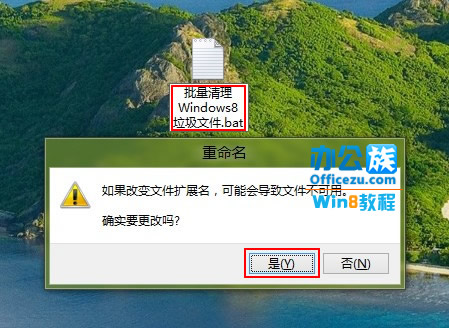
CleanJunk.bat(副檔名必須為 .bat)。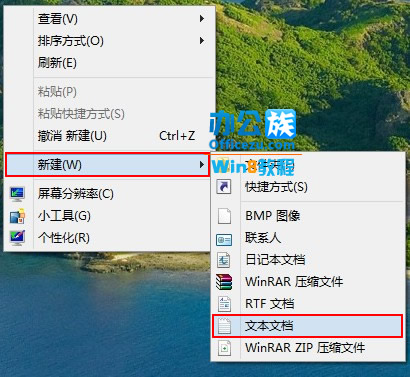
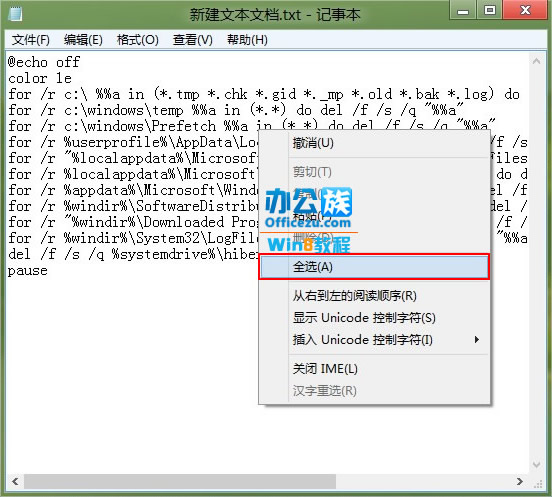
@echo off
color 1e
echo 正在清理系統垃圾檔案,請稍候...
for /r c: %%a in (*.tmp *.chk *.gid *._mp *.old *.bak *.log) do del /f /s /q "%%a"
for /r c:\windows\temp %%a in (*.*) do del /f /s /q "%%a"
for /r c:\windows\Prefetch %%a in (*.*) do del /f /s /q "%%a"
for /r "%userprofile%\AppData\Local\Temp" %%a in (*.*) do del /f /s /q "%%a"
for /r "%localappdata%\Microsoft\Windows\Temporary Internet Files" %%a in (*.*) do del /f /s /q "%%a"
for /r "%localappdata%\Microsoft\Windows\History" %%a in (*.*) do del /f /s /q "%%a"
for /r "%appdata%\Microsoft\Windows\Cookies" %%a in (*.*) do del /f /s /q "%%a"
for /r "%windir%\SoftwareDistribution\Download" %%a in (*) do del /f /s /q "%%a"
for /r "%windir%\Downloaded Program Files" %%a in (*) do del /f /s /q "%%a"
for /r "%windir%\System32\LogFiles" %%a in (*) do del /f /s /q "%%a"
del /f /s /q %systemdrive%\hiberfil.sys
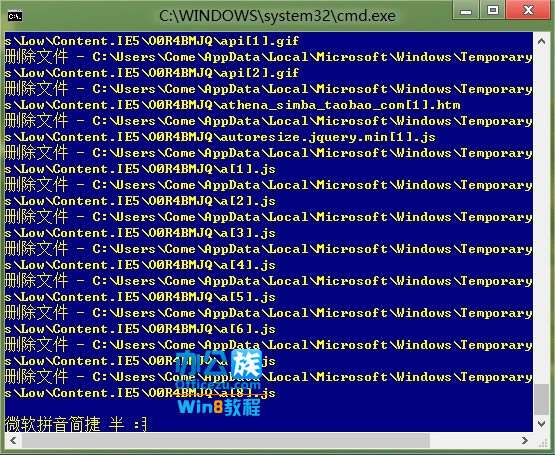
echo 清理完成!
pause
del /f /s /q 強制刪除,無法復原,請確認無重要檔案誤判為垃圾檔。