Windows 8 內建 Flash Player(ActiveX 版供 IE/Edge 使用),若線上影片提示更新但安裝程式失效,通常是系統目錄下的 Flash 檔案損毀或版本衝突。本文提供手動替換檔案並重新註冊的完整解決方案(附帶批次檔簡化操作)。
故障現象
- 瀏覽器播放影片提示「需要更新 Flash Player」。
- 下載 Adobe 官方安裝程式執行後無反應或報錯。
- 控制台 → Flash Player 顯示版本異常或無法檢查更新。
解決方案:手動替換系統 Flash 檔案並重新註冊
前置準備
- 從可正常運作的同版本 Windows 8 電腦複製 `Flash` 資料夾,或從可信來源取得對應版本的 `Flash.ocx`、`FlashUtil_ActiveX.exe` 等檔案。
- 目標路徑(64 位元系統雙路徑皆需處理):
- `C:\Windows\System32\Macromed\Flash`
- `C:\Windows\SysWOW64\Macromed\Flash`
操作步驟
- 備份原資料夾:將上述兩路徑下的 `Flash` 重新命名為 `Flash.old`。
- 將準備好的 `Flash` 資料夾複製到兩個路徑下。
- 以系統管理員身分開啟「命令提示字元」:Win + X → 「命令提示字元 (系統管理員)」。
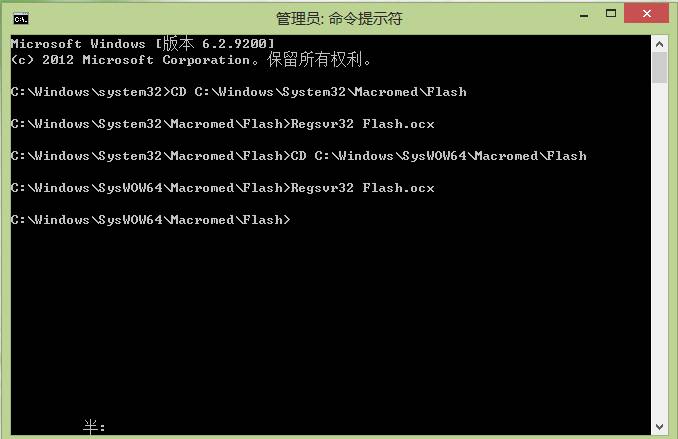
- 依序輸入以下指令(每行按 Enter):
cd C:\Windows\System32\Macromed\Flash
regsvr32 Flash.ocx
cd C:\Windows\SysWOW64\Macromed\Flash
regsvr32 Flash.ocx
✅ 若出現「DllRegisterServer in Flash.ocx succeeded」即註冊成功。
權限問題導致複製失敗?
若複製 `Flash` 資料夾時提示「拒絕存取」,請取得資料夾擁有權:
- 資料夾右鍵 → 「內容」→ 「安全性」→ 「進階」。
- 「擁有者」→ 「變更」→ 輸入目前登入使用者名稱 → 「檢查名稱」→ 「確定」。
- 「權限」索引標籤 → 「新增」→ 「選擇主體」→ 輸入使用者名稱 → 「確定」→ 勾選「完全控制」→ 「確定」一路套用。
驗證修復結果
- 開啟 IE/Edge 訪問 Flash 測試頁(如 `https://get.adobe.com/flashplayer/about/`)確認版本顯示正常。
- 播放線上影片不再提示更新。
- 控制台 → Flash Player → 「進階」→ 「檢查更新」顯示「已是最新版本」。
重要提醒
- Adobe 已於 2020/12/31 停止支援 Flash Player,現代瀏覽器(Chrome、Edge、Firefox)已內建移除,僅舊版 IE/舊版 Edge (EdgeHTML) 仍可能載入系統 ActiveX 版。
- 建議遷移至 HTML5 播放器,若因舊版系統/內部系統必須使用 Flash,請隔離網路環境使用,勿用於一般上網。
- Windows 8 主流支援已於 2018/1/9 結束,延伸支援至 2023/1/10 結束,強烈建議升級至 Windows 10/11。