Windows XP Windows 7 Windows 2003 Windows Vista Windows 綜合教學 Linux 系統教學
Windows 10 Windows 8 Windows 2008 Windows NT Windows Server 電腦軟體教學

Win8 IE10 無法播放 Flash 內容?分情境完整排除指南 (桌面模式/Modern 模式)

編輯:Win8 系統應用技巧

Windows 8 內建 IE10 分為「桌面模式」與「Modern 模式」 (全螢幕觸控介面),Flash Player 內建於兩者中。遇到無法播放 Flash 時,需先判斷桌面模式能否播放,再依情境對症下藥。
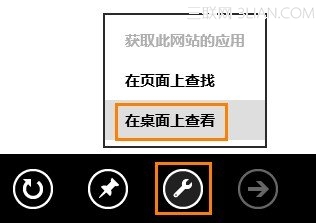
第一步:診斷 - 檢查桌面模式能否播放

  1. 在 Modern IE10 中開啟含 Flash 的網頁。
  2. 從螢幕底部或頂緣向內滑動叫出應用程式列。
  3. 點選「工具」>「在桌面上檢視」。
    切換至桌面模式
  4. 觀察桌面版 IE10 是否能正常播放該 Flash 內容。

情境 A:桌面模式也無法播放

問題在於 Flash Player 本身或 ActiveX 設定,請依序嘗試:
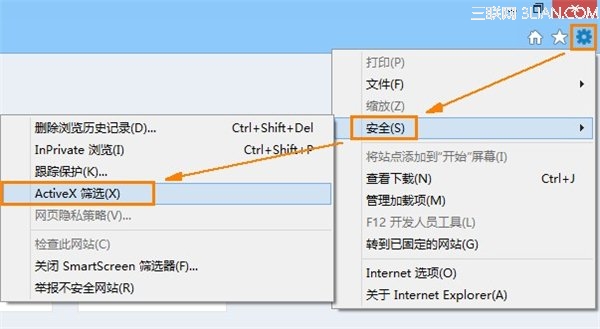
  1. 停用 ActiveX 篩選:
    桌面 IE10 > 「工具」>「安全性」> 若「ActiveX 篩選」前有勾選,點擊取消。重新啟動瀏覽器測試。
    停用 ActiveX 篩選
  2. 啟用 Flash Player 增益集:
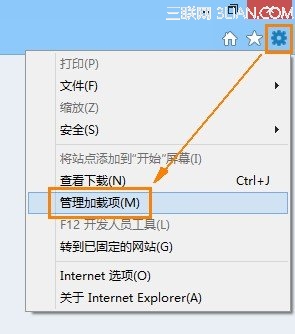
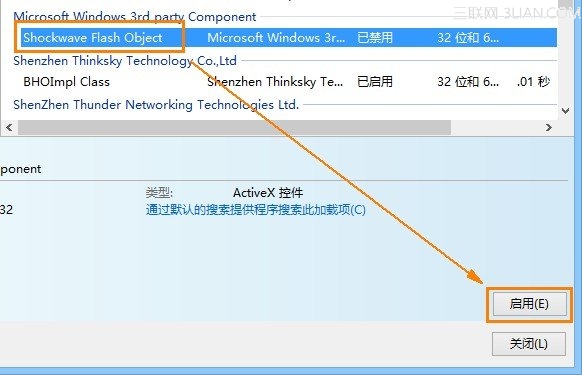
    桌面 IE10 > 「工具」>「管理增益集」 > 選擇「Shockwave Flash Object」 > 點擊「啟用」 > 關閉。
    管理增益集 啟用 Shockwave Flash Object
  3. 安裝/更新 Flash Player 最新版:
    Flash Player 透過 Windows Update 自動更新,亦可至 Adobe 官網下載安裝 (區分 32/64 位元)。

情境 B:桌面模式可播放,Modern 模式無法播放

原因通常為該網站未列入「相容性檢視清單」(CV List),Modern IE 僅允許清單內網站載入 Flash。解決方法:
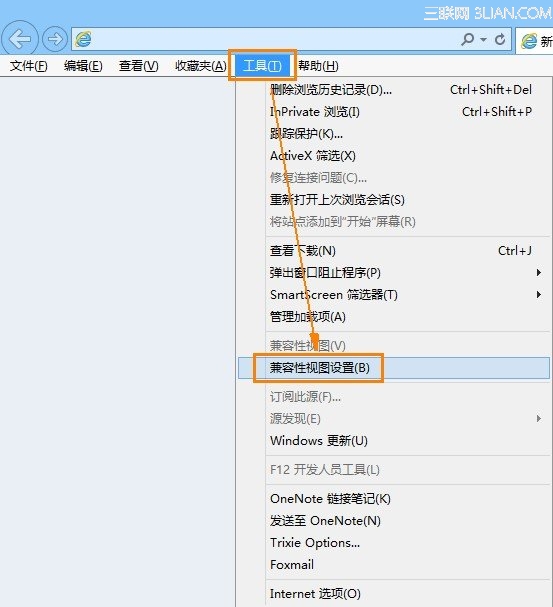
  1. 在桌面 IE10 開啟該網站。
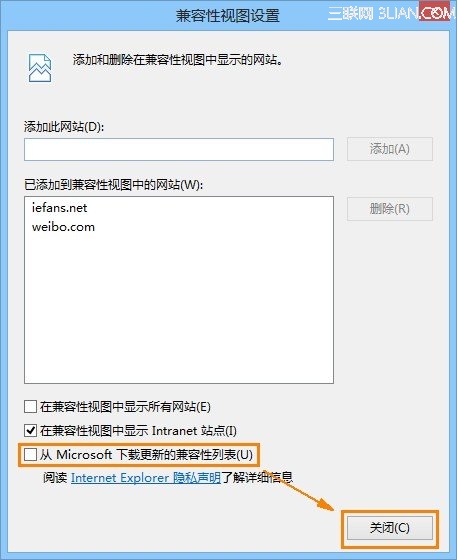
  2. 按 Alt 顯示選單列 > 「工具」>「相容性檢視設定」。
    相容性檢視設定
  3. 勾選 「從 Microsoft 下載更新的相容性清單」,按「關閉」。
    下載更新相容性清單
  4. 此後 Modern IE10 造訪該網站將自動啟用相容性檢視並允許 Flash 載入。

核心概念補充

  • Flash Player 內建於 IE10 兩種模式,不需另裝。
  • 所有更新皆透過 Windows Update 推送。
  • 相容性檢視清單 (CV List) 為微軟維護的白名單,決定 Modern IE 允許載入 Flash 的網站範圍。

依「桌面模式能否播放」分流排查,可快速定位問題核心並精準解決。

Copyright © Windows教程網 All Rights Reserved