Windows 8 Metro 應用程式 (現代應用) 長期使用會累積大量快取檔案 (INetCache, INetCookies, INetHistory),佔用 C 槽空間並導致系統變慢。Metro 應用缺乏內建清理功能,需手動或腳本清理。
%userprofile%\AppData\Local\Packages\PPTV.PPTVHD_svvymaqds8vhm\AC\)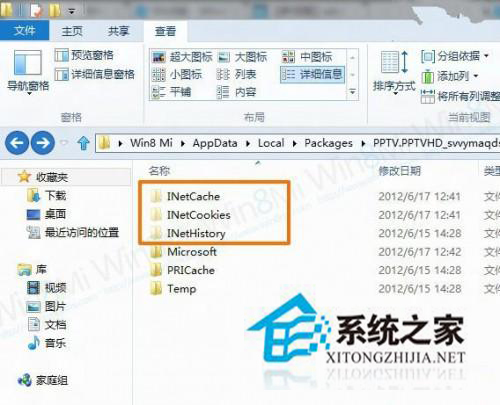
建立文字檔貼入以下程式碼,存為 clean_metro_cache.bat,雙擊執行:
@echo off
set "pkg_path=%userprofile%\AppData\Local\Packages"
for /d %%a in ("%pkg_path%\*") do (
    if exist "%%a\AC\INetCache" rd /s /q "%%a\AC\INetCache"
    if exist "%%a\AC\INetCookies" rd /s /q "%%a\AC\INetCookies"
    if exist "%%a\AC\INetHistory" rd /s /q "%%a\AC\INetHistory"
)
echo Metro 應用快取清理完成
pause
以系統管理員身分執行可清理所有使用者的 Metro 快取。
期待 Windows 8.1/10 內建 Metro 應用快取清理功能,或優化工具 (CCleaner 等) 完整支援現代應用快取掃描清理。
Windows 8 無法開啟休眠?磁碟空間不足導致 hiberfil.sys 建立失敗
Windows 8 Apps 生態成長軌跡:從 450 到 65,000+,多端融合策略初見成效
Windows 8 設定無線網路共享 (虛擬 AP 熱點) 完整教學:netsh 指令建立託管網路、ICS 共用、批次檔自動啟動
Win8.1 安裝 3 月更新後假死、Excel 啟動緩慢?微軟確認輸入法衝突,建議卸載英文輸入法或移除 KB3033889
Win8 開機提示 FunKoala64.dll 找不到?屬風行播放器殘留,刪除檔案或重裝卸載清理