AMD 顯卡廣泛用於筆電,Windows 8.1 使用者可透過 AMD Catalyst Control Center (現更名為 Radeon Software) 快速查看獨立顯存大小。以下提供標準版與進階版兩種查看路徑。
方法一:標準檢視模式
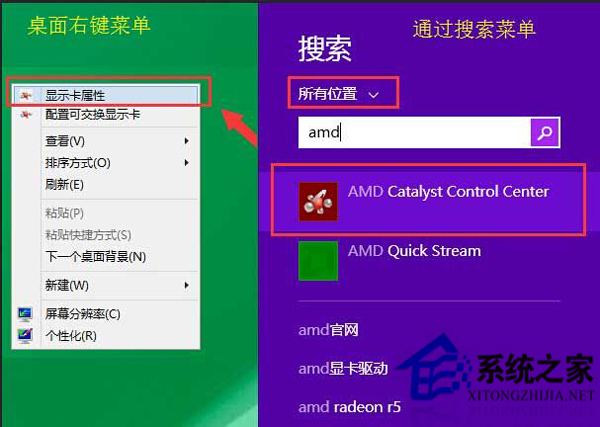
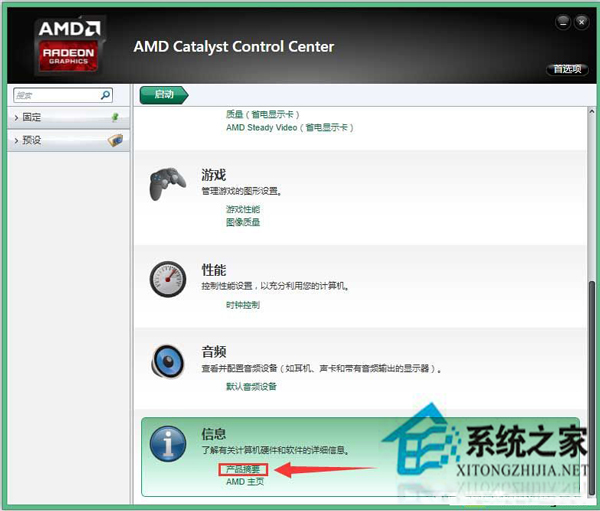
- 桌面右鍵選單或搜尋開啟 AMD Catalyst Control Center
- 首頁最下方點選「產品摘要」
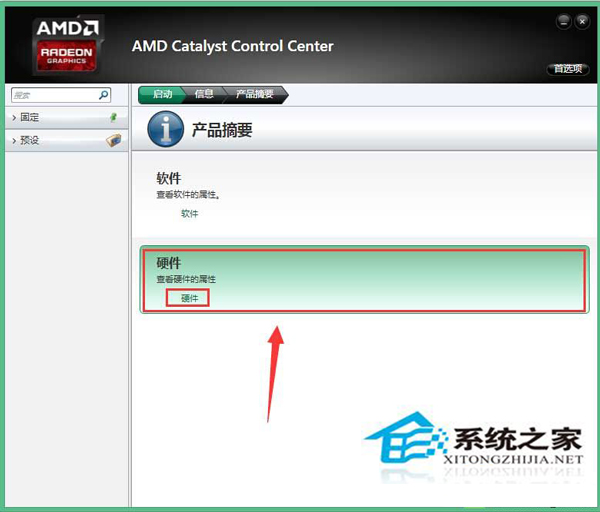
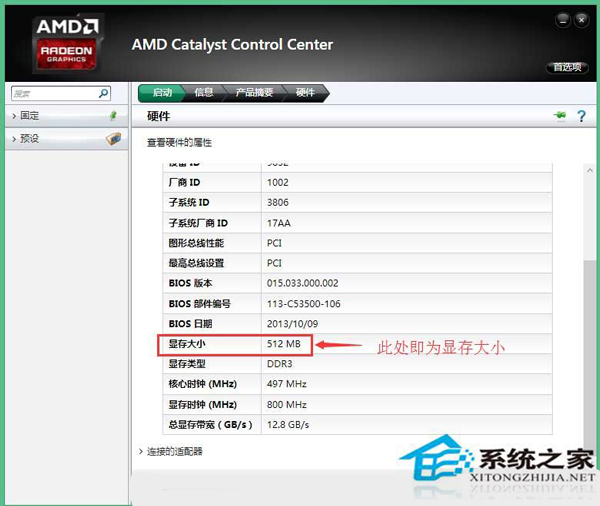
- 進入後選「硬體」索引標籤
- 即可看到「顯示記憶體」資訊 (單位 MB,1GB = 1024MB)
方法二:進階檢視模式
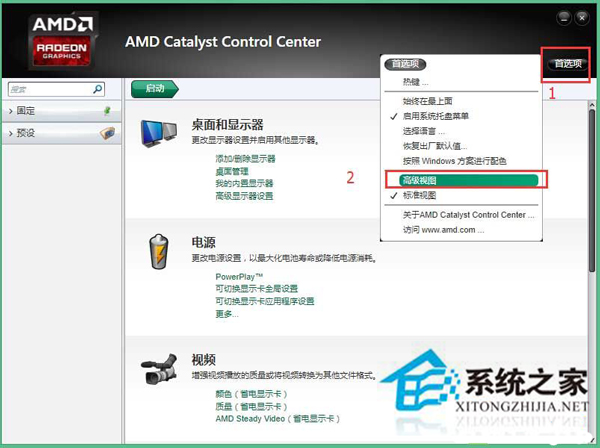
- 切換至「進階模式檢視」 (右上角選單)
- 左側選單選「資訊」→「硬體」
- 右側即顯示詳細顯存資訊
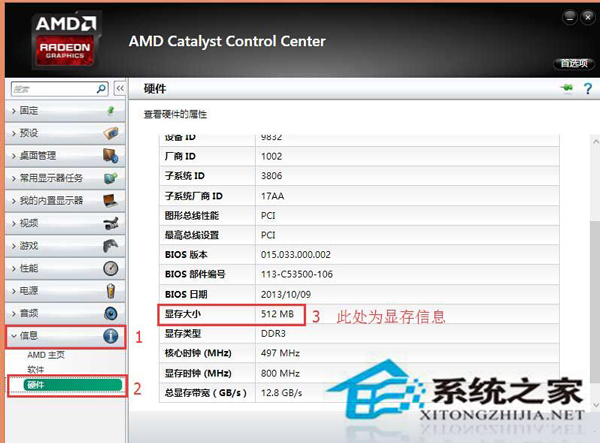
補充說明
- 顯示的為獨立顯存,不包含共用系統記憶體
- 筆電雙顯卡 (Intel + AMD) 環境下,請確認查看的是獨立顯卡資訊
- 新版驅動介面為 AMD Radeon Software,操作邏輯類似:效能 → 系統 → 硬體規格
- 亦可用
dxdiag →「顯示」索引標籤查看「顯示記憶體 (VRAM)」