Windows XP Windows 7 Windows 2003 Windows Vista Windows 綜合教學 Linux 系統教學
Windows 10 Windows 8 Windows 2008 Windows NT Windows Server 電腦軟體教學

Windows 8 刪除本機檔案瀏覽歷程記錄:介面清除與登錄檔禁用

編輯:Win8 系統基礎知識

檔案總管會記錄最近存取的檔案/資料夾路徑 (地址列下拉選單、快速存取),涉及隱私時可手動清除或透過登錄檔完全禁用記錄功能。
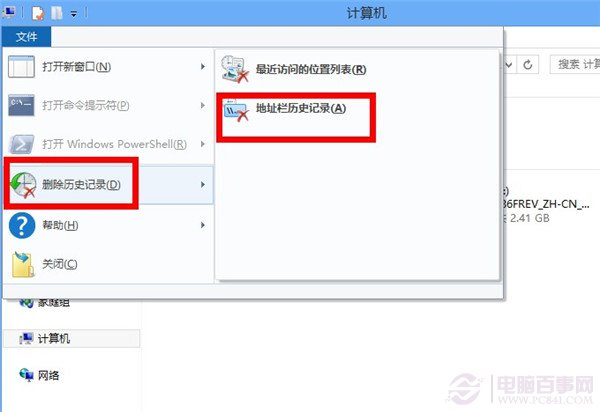
方法一:介面手動清除

  1. 開啟檔案總管 (Win+E) → 左上角「檔案」→「刪除歷程記錄」→ 勾選「地址列歷程記錄」→ 確定。
    刪除歷程記錄

方法二:登錄檔禁用地址列歷程記錄 (進階)

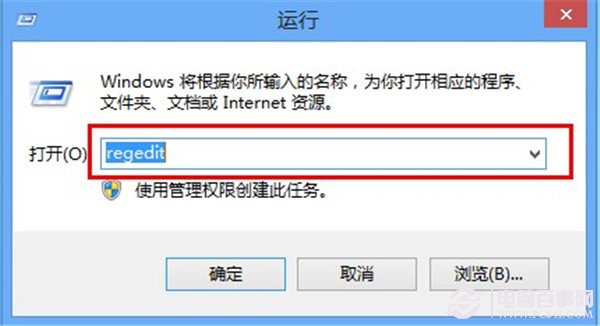
  1. 按 Win+R 輸入 regedit 開啟登錄編輯器。
    開啟登錄編輯器
  2. 按 Ctrl+F 搜尋 TypedPaths (或手動定位至 HKEY_CURRENT_USER\Software\Microsoft\Windows\CurrentVersion\Explorer\TypedPaths)。
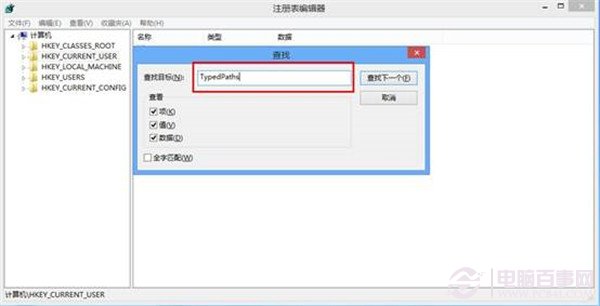
    搜尋 TypedPaths
  3. 右鍵 TypedPaths →「權限」→ 選擇目前使用者帳戶 → 勾選「完全控制」允許 → 確定。
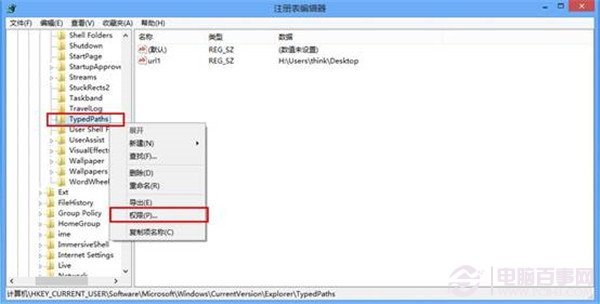
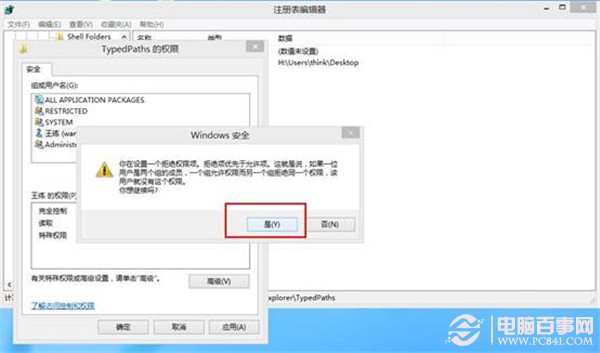
    TypedPaths 權限
    完全控制允許
  4. 取得權限後,刪除 TypedPaths 內所有字串值,或刪除整個 TypedPaths 鍵值 (重開機後系統會重建空鍵值)。

注意

修改登錄檔有風險,建議操作前匯出備份 TypedPaths 分支。禁用後地址列不再記錄輸入過的路徑,但「快速存取」與「最近使用的檔案」仍可能記錄,需另行在「資料夾選項」→「隱私權」清除/停用。

Copyright © Windows教程網 All Rights Reserved