Windows 8 自動更新報錯、無法下載更新,常因元件存放區損毀導致更新服務異常。執行 DISM 掃描健康狀態並修復,可恢復更新功能,同時修復潛在系統檔案損毀。
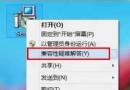
cmd,右鍵選 以系統管理員身分執行。DISM.exe /Online /Cleanup-image /Scanhealth DISM.exe /Online /Cleanup-image /Restorehealth
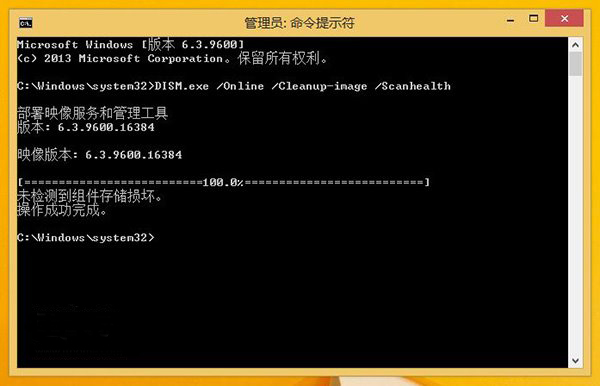
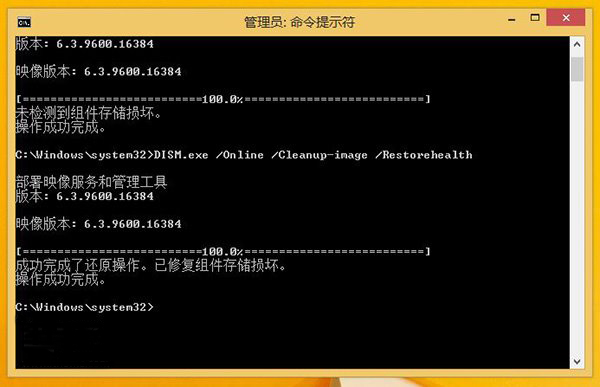
/Scanhealth:快速掃描元件存放區是否標記損毀。/Restorehealth:自動從 Windows Update 下載健全檔案替換損毀元件 (需網路)。修復後建議接著執行 sfc /scannow 修復系統檔案,雙重保障。若 DISM 卡在 20%、40% 久不動,通常是網路連線 Windows Update 伺服器緩慢,耐心等待或換網路環境。
Windows 8 你不得不知道的十大亮點:觸控介面、平板策略、ARM/x86 雙平台、應用商店、2012 年夏季登場
Windows 8 將支援更多程式語言 WinRT 平台開放多語言開發環境
修改 Windows 8 登入畫面 DPI 設定:讓高解析度螢幕的登入介面不再過小
Win8.1 IE11 關閉網址自動完成 (URL 聯想)?Internet 選項→內容→自動完成設定取消勾選
Windows 8 图片密码设置全攻略:三步手势替代繁琐字符,安全又便捷
Windows 8 電話啟用完整攻略:slmgr 安裝金鑰、slui4 選擇英國、Skype 撥打激活中心、VPN 繞過封鎖、備份啟用檔案