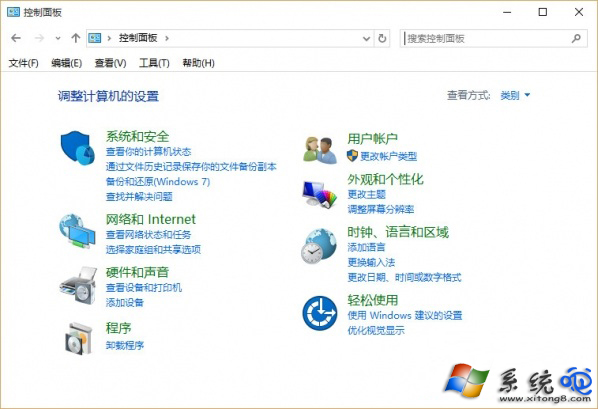
Win8.1 點選控制台無反應、閃退或報錯,常因 System32 下的 .cpl 擴充檔案損毀、第三方軟體註冊的 .cpl 檔案衝突、或 .cpl 檔案關聯被修改導致。以下提供分級修復方案。
%SystemRoot%\System32 開啟系統資料夾。*.cpl,逐一雙擊測試。無法開啟控制台的 .cpl 即為損毀檔案。sfc /scannow 掃描修復系統檔案,完成後重開機。sfc 無效,修復 .cpl 檔案關聯:cpl.reg 並雙擊匯入:Windows Registry Editor Version 5.00
[HKEY_CLASSES_ROOT\.cpl]
@="cplfile"
"Generic"="system"
[HKEY_CLASSES_ROOT\.cpl\PersistentHandler]
@="{098f2470-bae0-11cd-b579-08002b30bfeb}"
[HKEY_CLASSES_ROOT\cplfile]
@="Control Panel extension"
[HKEY_CLASSES_ROOT\cplfile\shell]
[HKEY_CLASSES_ROOT\cplfile\shell\cplopen]
@="Open with Control Panel"
[HKEY_CLASSES_ROOT\cplfile\shell\cplopen\command]
@="rundll32.exe shell32.dll,Control_RunDLL %1,%*"
[HKEY_CLASSES_ROOT\cplfile\shell\runas]
[HKEY_CLASSES_ROOT\cplfile\shell\runas\command]
@="rundll32.exe shell32.dll,Control_RunDLLAsUser %1,%*"
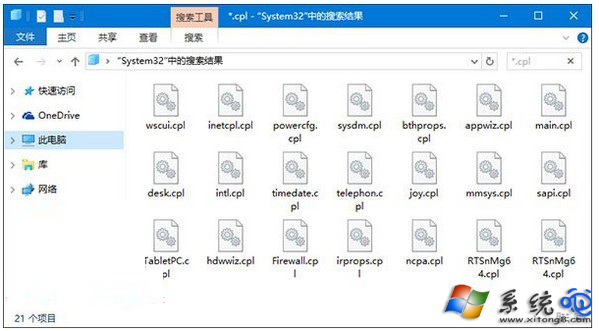
核心邏輯:.cpl 是控制台項目擴充檔,透過 rundll32.exe shell32.dll,Control_RunDLL 呼叫。檔案損毀用 SFC 修復,關聯錯誤用登錄檔重置。若 SFC 報錯無法修復,可嘗試 DISM 指令:DISM /Online /Cleanup-Image /RestoreHealth 修復元件存儲後再跑 SFC。