Chrome 更新時跳出 0x00000000 錯誤,通常是使用者資料夾下的 Cache 目錄殘留損壞檔案導致更新程式無法寫入新版本。只需刪除快取資料夾內容,重新啟動 Chrome 即可自動完成更新。
一鍵清除快取步驟
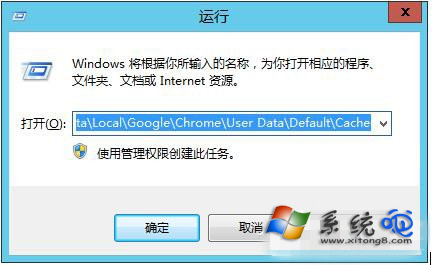
- 按 Win + R 開啟「執行」,貼上路徑並按 Enter:
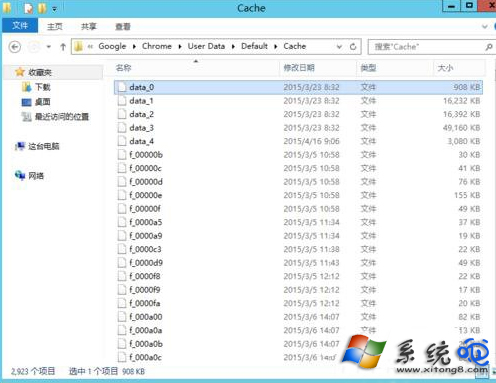
%USERPROFILE%\AppData\Local\Google\Chrome\User Data\Default\Cache
- 全選 (Ctrl + A) 刪除資料夾內所有檔案(資料夾本身保留)。
- 重新開啟 Chrome,點選選單 → 說明 → 關於 Google Chrome,瀏覽器會自動檢查並完成更新。
補充說明
- 若仍失敗,嘗試以「系統管理員身分執行」Chrome 更新,或下載 Chrome 完整安裝包 覆蓋安裝。
- 同理適用於 Edge、Firefox 等瀏覽器更新異常,只需清除對應快取目錄。