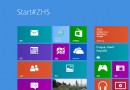
英文版 Windows 8 應用商店預設僅顯示英文/國際應用,中文應用極少。
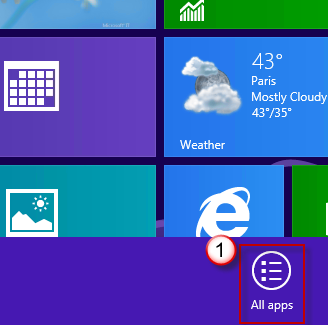
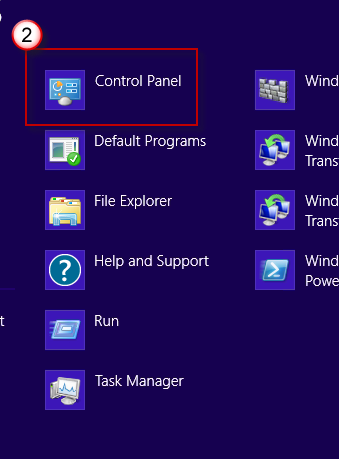
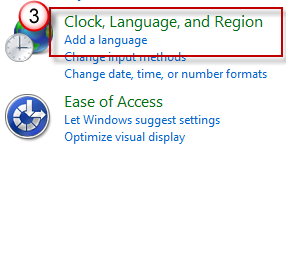
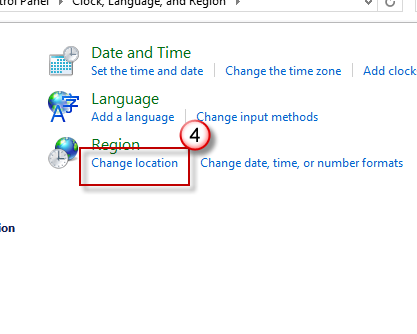
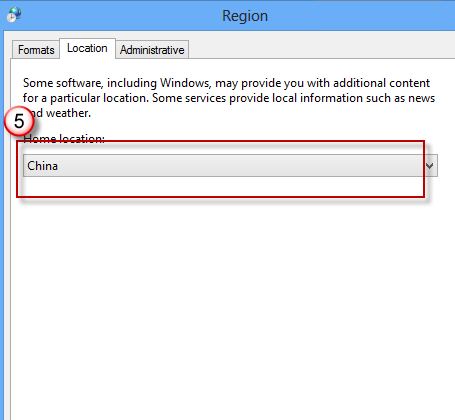
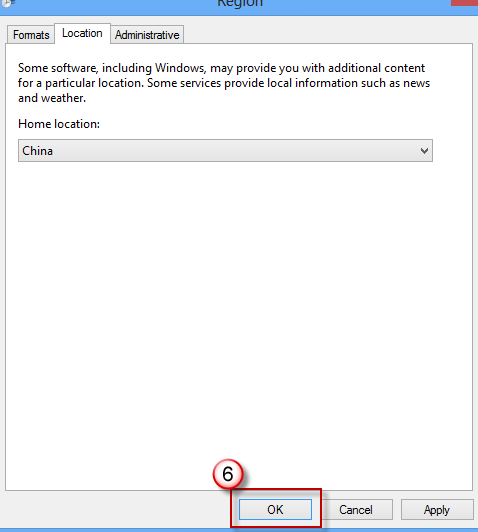
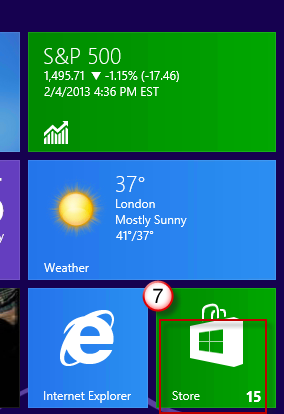
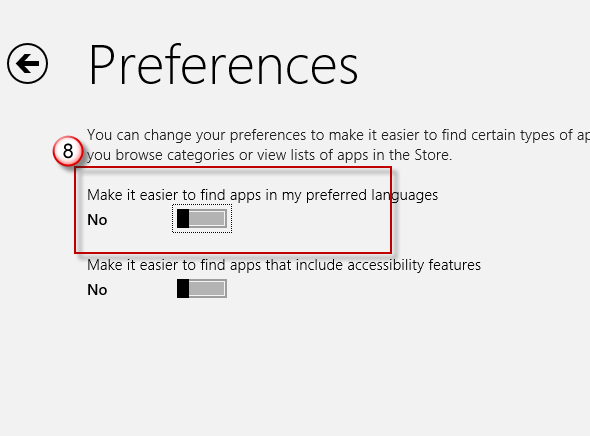
應用商店依「地區」與「偏好語言」篩選顯示應用。將地區設為 China,並關閉「偏好語言優先」選項,即可看到完整中文應用目錄。
三分鐘調整地區設定,英文版 Win8 瞬間擁有豐富中文應用生態,無需重裝中文版系統。
Windows 8 開啟控制台四大法:執行指令、開始畫面、Win+X 選單、搜尋功能
Win8 體驗內建微軟拼音輸入法:語言偏好設定新增中文 (簡體) 並置頂
Win8.1 無法玩《逆戰》?相容模式 Win8 + 關閉防毒 + 移除第三方輸入法 + 更新顯卡驅動
Windows 8 系統音效方案變更與自訂:控制台聲音設定六步驟完整圖解
Win 8 系統無法使用電信 3G 上網卡?手動建立撥號連線完整教學
Windows 8 三大版本差異比較:RT、核心版、專業版該怎麼選?
Windows 8 無線網路連線六步驟:關閉飛行模式 → 選取 SSID 輸入密鑰 → 選擇共用模式 → 進階管理流量計費/忘記網路/連線屬性