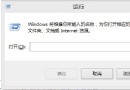
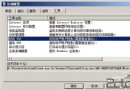
本文示範從 Windows 7 直接升級安裝 Windows 8 Consumer Preview(保留檔案與設定),適合不想保留 Win7 的用戶。若需雙系統請參考其他教學。
前置準備
- 下載 Windows 8 ISO 映像檔。
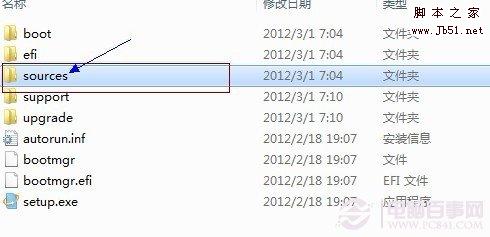
- 使用新版 WinRAR 解壓縮 ISO(取得
sources 資料夾)。
升級安裝步驟
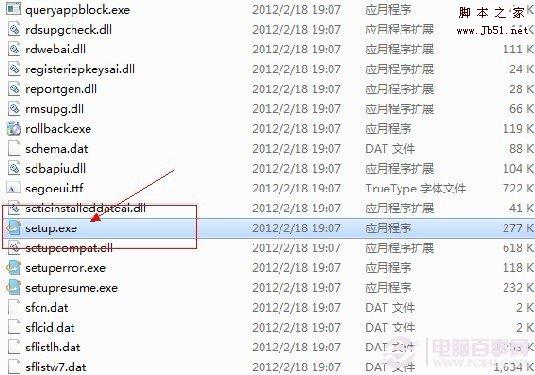
- 進入解壓後的
sources 資料夾,雙擊執行 setup.exe。
- 等待「安裝程式正在複製暫存檔案」完成。
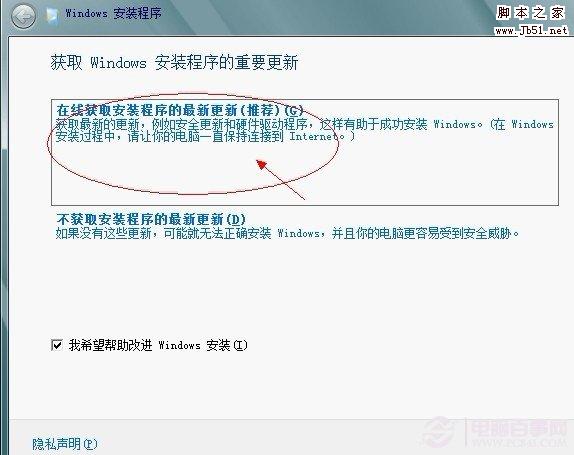
- 選擇「線上取得安裝程式的最新更新 (建議)」→ 下一步。
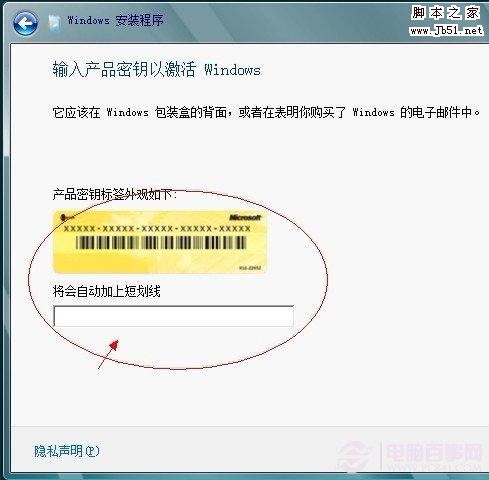
- 輸入產品金鑰:
DNJXJ-7XBW8-2378T-X22TX-BKG7J → 下一步。
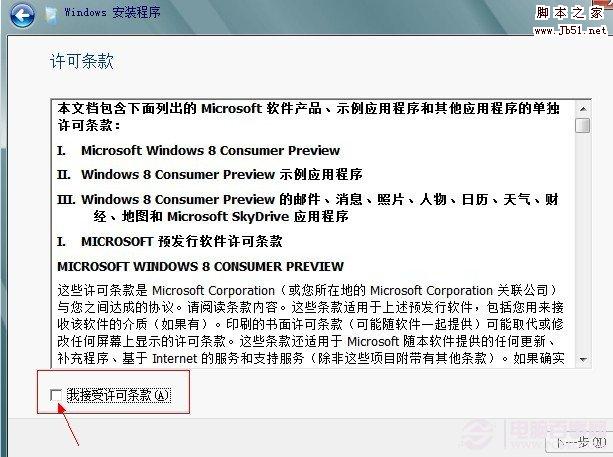
- 勾選「我接受授權條款」→ 下一步。
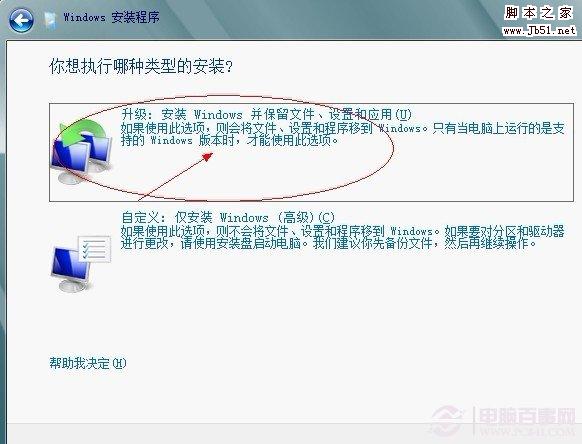
- 選擇安裝類型:「升級:安裝 Windows 並保留檔案、設定與應用程式」→ 下一步。
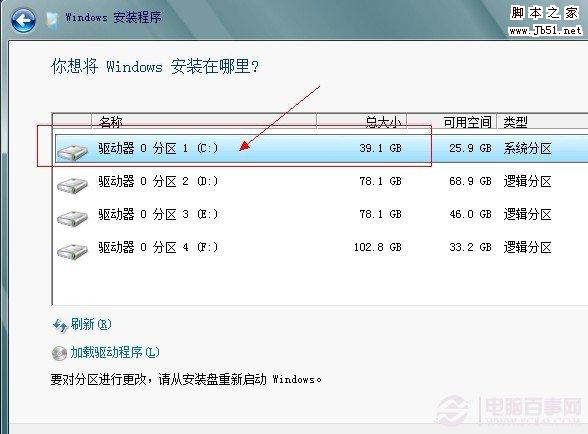
- 選擇安裝磁碟(通常為 C:)→ 下一步。
- 等待安裝完成,重新開機後即進入 Windows 8。

注意事項
- 升級後建議使用「本機帳號」而非微軟帳號登入(視需求)。
- 32 位元 Win7 僅能升級 32 位元 Win8;64 位元同理,無法跨架構升級。
升級安裝最簡單,但乾淨安裝或雙系統較穩定,視個人需求選擇。