部署完成後,桌面空白處右鍵將出現「電源控制」子選單,包含鎖定、登出、切換使用者、睡眠、休眠、重新開機、關機七大功能,圖示優雅,點擊即執行,無需進入 Charms 列或開始畫面。
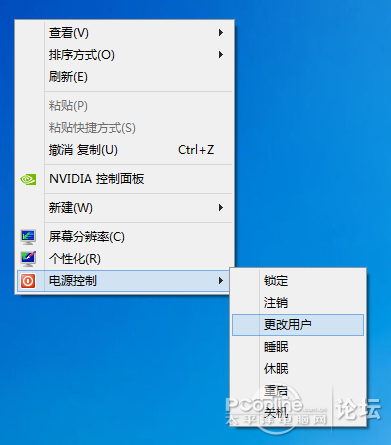
右鍵選單實際效果
Windows Registry Editor Version 5.00

;Created by Vishal Gupta for AskVG.com
[HKEY_CLASSES_ROOT\DesktopBackground\Shell\Power Menu]
"MUIVerb"="電源控制"
"SubCommands"="lock;logoff;switch;sleep;hibernate;restart;shutdown"
"Icon"="shell32.dll,215"
"Position"="bottom"

[HKEY_LOCAL_MACHINE\SOFTWARE\Microsoft\Windows\CurrentVersion\Explorer\CommandStore\shell\lock]
@="鎖定"
[HKEY_LOCAL_MACHINE\SOFTWARE\Microsoft\Windows\CurrentVersion\Explorer\CommandStore\shell\lock\command]
@="Rundll32 User32.dll,LockWorkStation"

[HKEY_LOCAL_MACHINE\SOFTWARE\Microsoft\Windows\CurrentVersion\Explorer\CommandStore\shell\logoff]
@="登出"
[HKEY_LOCAL_MACHINE\SOFTWARE\Microsoft\Windows\CurrentVersion\Explorer\CommandStore\shell\logoff\command]
@="Shutdown -l"

[HKEY_LOCAL_MACHINE\SOFTWARE\Microsoft\Windows\CurrentVersion\Explorer\CommandStore\shell\switch]
@="切換使用者"
[HKEY_LOCAL_MACHINE\SOFTWARE\Microsoft\Windows\CurrentVersion\Explorer\CommandStore\shell\switch\command]
@="tsdiscon.exe"

[HKEY_LOCAL_MACHINE\SOFTWARE\Microsoft\Windows\CurrentVersion\Explorer\CommandStore\shell\sleep]
@="睡眠"
[HKEY_LOCAL_MACHINE\SOFTWARE\Microsoft\Windows\CurrentVersion\Explorer\CommandStore\shell\sleep\command]
@="rundll32.exe powrprof.dll,SetSuspendState Sleep"

[HKEY_LOCAL_MACHINE\SOFTWARE\Microsoft\Windows\CurrentVersion\Explorer\CommandStore\shell\hibernate]
@="休眠"
[HKEY_LOCAL_MACHINE\SOFTWARE\Microsoft\Windows\CurrentVersion\Explorer\CommandStore\shell\hibernate\command]
@="Shutdown -h"

[HKEY_LOCAL_MACHINE\SOFTWARE\Microsoft\Windows\CurrentVersion\Explorer\CommandStore\shell\restart]
@="重新開機"
[HKEY_LOCAL_MACHINE\SOFTWARE\Microsoft\Windows\CurrentVersion\Explorer\CommandStore\shell\restart\command]
@="Shutdown -r -f -t 00"

[HKEY_LOCAL_MACHINE\SOFTWARE\Microsoft\Windows\CurrentVersion\Explorer\CommandStore\shell\shutdown]
@="關機"
[HKEY_LOCAL_MACHINE\SOFTWARE\Microsoft\Windows\CurrentVersion\Explorer\CommandStore\shell\shutdown\command]
@="shutdown -s -hybrid -t 00"
右鍵選單電源.reg,存檔類型選「所有檔案」。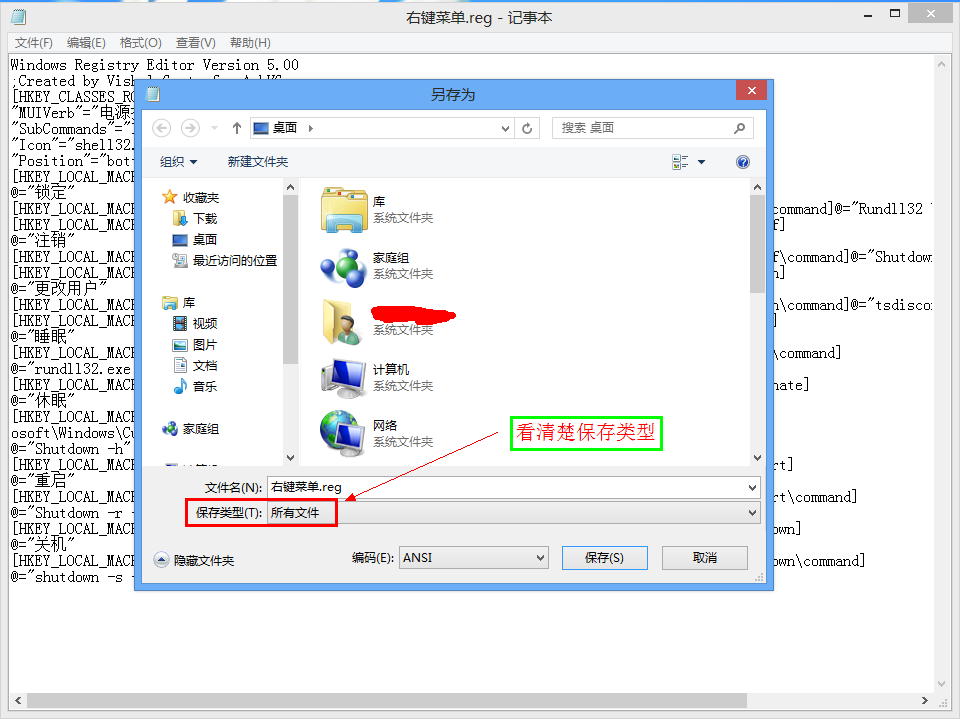
另存為登錄檔
右鍵選單電源.reg。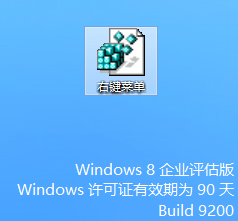
匯入登錄檔確認對話框
登錄檔在 HKEY_CLASSES_ROOT\DesktopBackground\Shell 下建立「Power Menu」鍵值,透過 SubCommands 串聯七個獨立命令鍵,各命令鍵位於 HKEY_LOCAL_MACHINE\SOFTWARE\Microsoft\Windows\CurrentVersion\Explorer\CommandStore\shell 下,以標準系統指令(shutdown、rundll32、tsdiscon)實現對應功能。Icon 指定 shell32.dll 第 215 號圖示,Position="bottom" 固定於選單底部。
若需還原,建立並匯入以下登錄檔:
Windows Registry Editor Version 5.00
[-HKEY_CLASSES_ROOT\DesktopBackground\Shell\Power Menu]
[-HKEY_LOCAL_MACHINE\SOFTWARE\Microsoft\Windows\CurrentVersion\Explorer\CommandStore\shell\lock]
[-HKEY_LOCAL_MACHINE\SOFTWARE\Microsoft\Windows\CurrentVersion\Explorer\CommandStore\shell\logoff]
[-HKEY_LOCAL_MACHINE\SOFTWARE\Microsoft\Windows\CurrentVersion\Explorer\CommandStore\shell\switch]
[-HKEY_LOCAL_MACHINE\SOFTWARE\Microsoft\Windows\CurrentVersion\Explorer\CommandStore\shell\sleep]
[-HKEY_LOCAL_MACHINE\SOFTWARE\Microsoft\Windows\CurrentVersion\Explorer\CommandStore\shell\hibernate]
[-HKEY_LOCAL_MACHINE\SOFTWARE\Microsoft\Windows\CurrentVersion\Explorer\CommandStore\shell\restart]
[-HKEY_LOCAL_MACHINE\SOFTWARE\Microsoft\Windows\CurrentVersion\Explorer\CommandStore\shell\shutdown]