Windows XP Windows 7 Windows 2003 Windows Vista Windows 綜合教學 Linux 系統教學
Windows 10 Windows 8 Windows 2008 Windows NT Windows Server 電腦軟體教學

Windows 8 遊戲無法全螢幕三大解法:檢查遊戲設定、修改登錄 Scaling 值、調整解析度相容性

編輯:Windows 8 系統介紹

方案一:檢查遊戲內建全螢幕選項

許多遊戲在設定中提供「全螢幕/視窗/無邊框視窗」選項,請先確認已選擇「全螢幕」模式。

方案二:修改登錄 Scaling 值(參考 Win 7 同類修法)

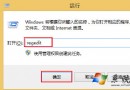
  1. Win+R 輸入 regedit 開啟登錄編輯器。
  2. 瀏覽至:HKEY_LOCAL_MACHINE\SYSTEM\ControlSet001\Control\GraphicsDrivers\Configuration。
  3. 展開所有子項,在右側窗格找到 Scaling 值。
  4. 將數值資料從 4 改為 3,重開機生效。

方案三:解析度不相容導致黑邊/無法全螢幕

  1. 嘗試在遊戲設定或 Windows 顯示設定中調整為螢幕原生解析度。
  2. 若為舊遊戲(如魔獸爭霸 III),可修改登錄指定解析度:
HKEY_CURRENT_USER\Software\Blizzard Entertainment\Warcraft III\Video
resheight = 螢幕高度 (十進位)
reswidth  = 螢幕寬度 (十進位)

依序嘗試三法,多數 Win 8 遊戲全螢幕問題可解決。若無效,請更新顯示卡驅動程式或嘗試相容模式執行遊戲。

Copyright © Windows教程網 All Rights Reserved