Windows 8.1 桌面右下角出現「安全啟動未正確配置」水印,通常因群組原則中「使用增強啟動配置資料驗證檔案」未啟用,或 BIOS Secure Boot 選項關閉。
gpedit.msc 開啟本機群組原則編輯器。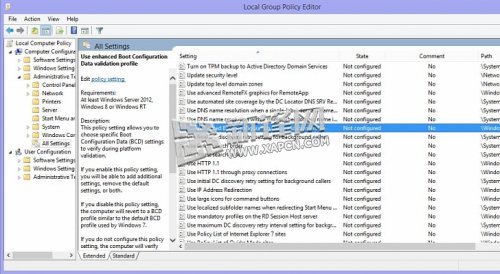
進入 BIOS/UEFI 設定,尋找 Secure Boot 選項(通常在 Security、Boot 或 Authentication 分頁),確認設為 Enabled。若主機板不支援 Secure Boot,則無法徹底移除水印,但不影響系統功能。
Windows 8.1 強化啟動流程完整性驗證,要求啟動載入器、核心、驅動皆經過簽章驗證。群組原則啟用增強驗證配合 BIOS Secure Boot,即構成完整信任鏈,水印自然消失。
gpedit.msc,可嘗試註冊表:HKEY_LOCAL_MACHINE\SYSTEM\CurrentControlSet\Control\CI\Policy 新增 DWORD EnableEnhancedBootConfigValidation = 1。Windows 8 應用商店收不到更新提醒?三步驟檢查設定:自動更新、手動檢查、語言/輔助功能篩選
Win8.1 Update正式版全新安裝圖文教學:ISO驗證、U盤啟動、分區、金鑰與帳號設定
加速 Win8 系統執行速度:視覺效果調整為「最佳效能」模式
Windows 8 取消「電腦管理」啟動器彈出 UAC 提示:登錄表修改 Command 值為 mmc compmgmt.msc
Win 8 安裝 Office 後右鍵「新增」缺少 Word 選項?修改登錄表 .doc 關聯即可
Win8 瀏覽 HTTPS 網站提示憑證錯誤?三種解決方案修復信任鏈
Windows 8 平板電腦十大成功理由:光環效應、廠商陣容、企業剛需、外設相容、品牌認知、Android 不安全、iPad 孤軍、時機成熟、價格多元、微軟富現金