Windows XP Windows 7 Windows 2003 Windows Vista Windows 綜合教學 Linux 系統教學
Windows 10 Windows 8 Windows 2008 Windows NT Windows Server 電腦軟體教學

Win7 右鍵選單缺少「藍牙傳送」?建立 fsquirt.exe 捷徑加入「傳送至」選單

編輯:Win7 常見問題解答

Windows 7 內建藍牙傳輸工具 fsquirt.exe,但右鍵「傳送至」選單預設不包含藍牙選項。透過建立捷徑並放入 shell:sendto 資料夾,即可在右鍵選單一鍵啟動藍牙傳輸精靈。

操作步驟

  1. 開啟總管,網址列輸入 %windir%\system32 按 Enter(或 C:\Windows\System32)。
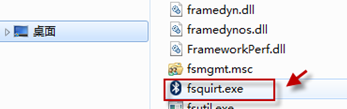
  2. 搜尋 fsquirt.exe(藍牙檔案傳輸精靈)。
  3. fsquirt.exe 位置
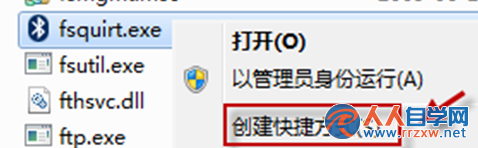
  4. 右鍵 fsquirt.exe → 「建立捷徑」 → 捷徑會出現在桌面。
  5. 建立捷徑
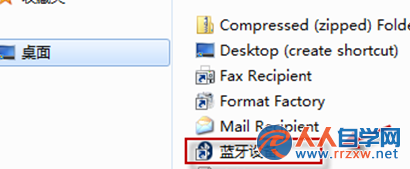
  6. 按 Win+R 輸入 shell:sendto 按 Enter,開啟「傳送至」資料夾。
  7. shell:sendto 資料夾
  8. 將桌面的 fsquirt.exe - 捷徑 剪下/複製 到此資料夾。
  9. 完成!現在任意檔案右鍵 →「傳送至」→ 即可看到 「藍牙檔案傳輸精靈」。

使用流程

  1. 右鍵檔案 →「傳送至」→「藍牙檔案傳輸精靈」。
  2. 選擇「傳送檔案」→ 選取配對裝置 → 下一步 → 選擇檔案 → 傳送。
  3. 接收端需確認接收。

注意事項

  • 雙方裝置需先配對成功(控制台 → 裝置和印表機 → 新增裝置)。
  • 傳輸速度受藍牙版本限制(BT 2.1+EDR 約 2.1 Mbps,BT 4.0 約 24 Mbps),大檔案建議用 USB/網路傳輸。
  • 64 位元系統 fsquirt.exe 同樣在 System32(非 SysWOW64)。
Copyright © Windows教程網 All Rights Reserved