Windows XP Windows 7 Windows 2003 Windows Vista Windows 綜合教學 Linux 系統教學
Windows 10 Windows 8 Windows 2008 Windows NT Windows Server 電腦軟體教學

升級 Win10 後刪除 Win7 備份檔案釋放空間:儲存感知與舊版本清理

編輯:Win7 系統應用技巧

Win7 升級 Win10 會保留 C:\Windows.old 資料夾 (含舊系統檔案、使用者資料、程式檔案),佔用 10-30GB 空間。Win10 內建「儲存感知」可安全清理。
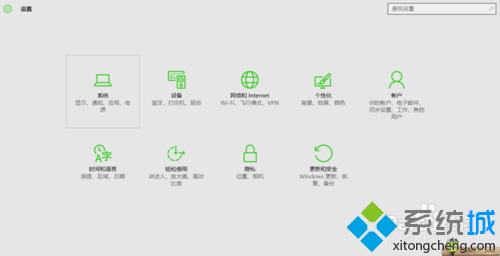
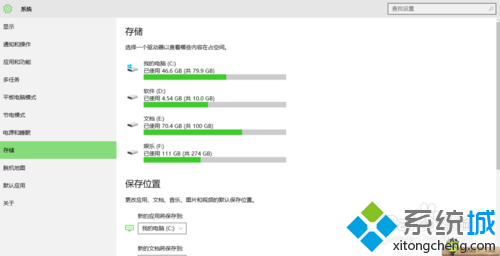
Win10 設定介面清理 (圖形化、最安全)

  1. 開始 →「設定」 (齒輪圖示) →「系統」→「儲存體」。
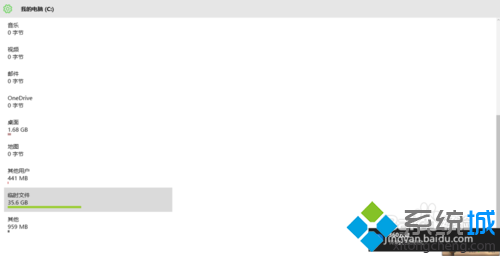
  2. 等待掃描完成 → 點擊 C: (系統盤) → 向下捲動找到 「暫存檔案」 → 點擊進入。
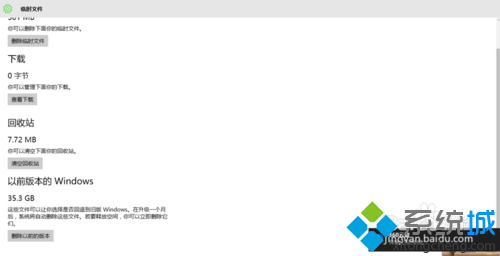
  3. 在清單中找到 「舊版本的 Windows」 /「之前的 Windows 安裝」 → 勾選。
  4. 確認無其他需保留項目 (如「下載資料夾」請勿勾選) → 點擊 「移除檔案」 /「刪除舊版本」。
  5. 等待清理完成 (數分鐘),空間即時釋放。

命令列快速清理 (管理員 CMD/PowerShell)

# 清理 Windows.old 及暫存檔
cleanmgr /sagerun:1
# 或直接針對 Windows.old
dism /online /cleanup-image /startcomponentcleanup /resetbase
# 手動刪除 (需取得權限)
takeown /f "C:\Windows.old" /r /d y
icacls "C:\Windows.old" /grant administrators:F /t /c /q
rd /s /q "C:\Windows.old"

清理前必備確認

  • 確認 Win10 穩定運行 1-2 週,無驅動/軟體相容性問題,無需回滾 Win7。
  • 備份 Windows.old 中個人資料:C:\Windows.old\Users\[使用者名稱]\Desktop/Documents/Pictures 等重要檔案已複製到新系統對應位置。
  • 清理後 無法回滾至 Win7 (除非重灌),操作不可逆。

其他可清理項目 (同介面勾選)

  • Windows 更新清理 (已安裝更新的備份檔)。
  • 裝置驅動程式套件 (舊驅動版本)。
  • 交付優化檔案 (P2P 更新快取)。
  • 回收站、暫存檔案、縮圖快取。

Win10 「儲存感知」提供最安全的圖形化清理入口,確認無回滾需求後大膽清理,輕鬆騰出十數 GB 空間。

Copyright © Windows教程網 All Rights Reserved