Firefox 快取佔用磁碟空間、或需備份快取資源。Win7 下查詢快取路徑、手動清理的標準流程。
查詢快取路徑 (Firefox 內建)
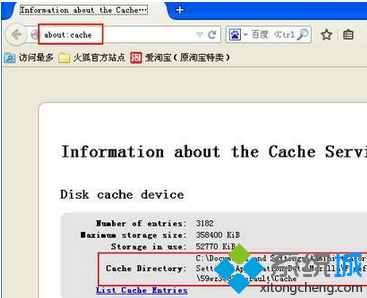
- Firefox 網址列輸入
about:cache → Enter (若出現警告頁面點擊「我接受風險」/「我保證會小心」)。
- 頁面顯示快取資訊,找到 「磁碟快取裝置」 (Disk cache device) 區塊。
- 「儲存磁碟位置」 (Storage disk location) 後方路徑即為快取資料夾,典型路徑:
C:\Users\[使用者名稱]\AppData\Local\Mozilla\Firefox\Profiles\xxxxxxxx.default\cache2
- 複製該路徑。
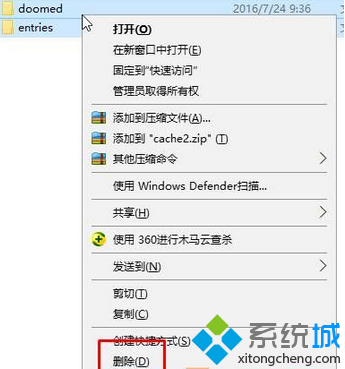
手動清理快取檔案
- 關閉 Firefox (必要,否則檔案被鎖定無法刪除)。
- Win+R → 貼上快取路徑 → Enter 開啟資料夾。
- 全選 (Ctrl+A) → 刪除 (Delete 或 Shift+Delete) 所有檔案/資料夾。
- 重新開啟 Firefox,快取大小歸零。
Firefox 內建清理 (更安全、可選擇性)
- 選單 →「選項」/「設定」→「隱私權與安全性」。
- 「Cookie 與網站資料」→「清除資料」→ 勾選「快取的網頁內容」→「清除」。
- 或「歷史記錄」→「清除最近的歷史記錄」→ 時間範圍「所有時間」→ 勾選「快取」→「確定」。
進階:變更快取位置/大小限制
about:config → 搜尋 browser.cache.disk.parent_directory → 修改為自訂路徑 (如 D:\FirefoxCache)。browser.cache.disk.capacity → 設定最大快取空間 (KB),預設 358400 (350MB)。browser.cache.disk.enable → false 可完全停用磁碟快取 (僅記憶體快取)。
效果驗證
- 清理後重開 Firefox,
about:cache 顯示快取大小為 0 KB / 幾 KB。
- 系統磁碟空間釋放明顯 (視快取大小而定,常見 200MB-2GB)。
- 網頁首次載入速度略降 (需重新下載資源),後續恢復正常。
定期清理 Firefox 快取 (每月/磁碟空間緊張時),保持瀏覽器輕量高效。