Win7 內建語音辨識 (Speech Recognition) 若不使用,背景服務常駐佔用記憶體與 CPU。透過控制台停用啟動項與服務雙重確保,釋放系統資源。
方法一:控制台停用啟動項 (介面操作)
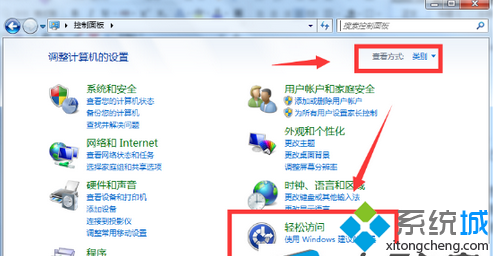
- 控制台 → 檢視模式切換為「類別」 →「輕鬆存取」。
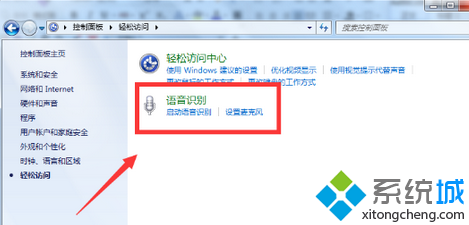
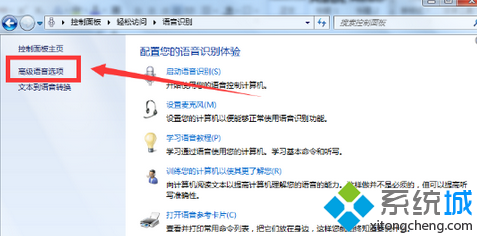
- 點擊「語音辨識」 → 左側選單「進階語音選項」。
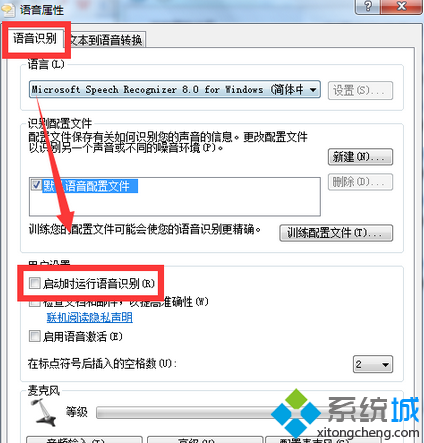
- 「語音辨識」頁籤 → 「使用者設定」區塊 → 取消勾選「啟動時執行語音辨識」 → 確定。
- 重開機生效。
方法二:服務管理器停用相關服務 (徹底)
- Win+R →
services.msc。
- 找到並雙擊以下服務,啟動類型改為「已停用」,服務狀態點擊「停止」:
- Windows Speech Recognition (或顯示為「語音辨識」)
- Speech Runtime Executable (語音執行階段)
- 確定套用。
效果驗證
- 工作管理器 → 「詳細資料」頁籤,確認無
SpeechRuntime.exe、sapisvr.exe 等進程。
- 開機啟動項 (Ctrl+Shift+Esc →「啟動」) 無語音辨識相關項目。
- 節省約 20-50MB 記憶體與極少量 CPU 週期,對低配電腦明顯。
補充:語音輸入法 (Tablet Input Service) 區別
若使用觸控螢幕/手寫輸入,請保留「Touch Keyboard and Handwriting Panel Service」 (TabletInputService),此為手寫/觸控鍵盤核心服務,非語音辨識。
不需語音控制電腦的用戶,建議雙重停用,乾淨利落。