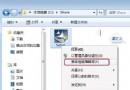
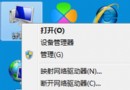
「電腦」或「檔案總管」中,磁碟機圖示不再顯示可用空間/總容量資訊,僅顯示圖示與磁碟機代號。
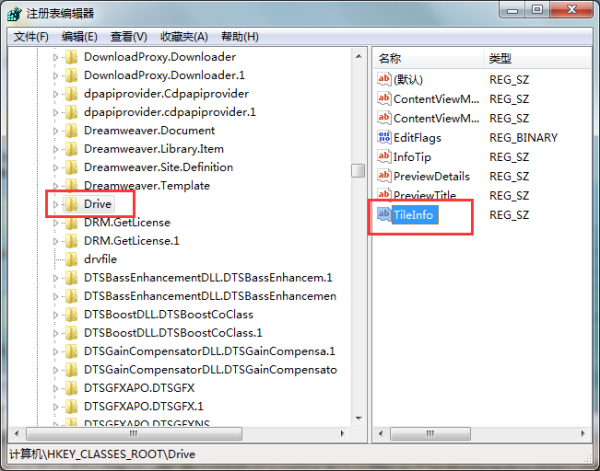
登錄機碼 HKEY_CLASSES_ROOT\Drive\TileInfo 的 TileInfo 字串值損毀或遺失,導致檔案總管無法正確讀取磁碟屬性進行顯示。
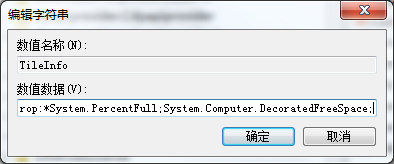
regedit 開啟登錄編輯器。HKEY_CLASSES_ROOT → Drive。prop:*System.PercentFull;System.Computer.DecoratedFreeSpace;System.Volume.FileSystem
explorer.exe (工作管理器 → 結束程序 → 新增工作 → explorer.exe) 即可生效。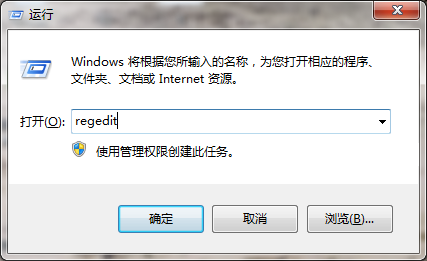
重新開啟「電腦」,磁碟機圖示下方應顯示類似:「本機磁碟 (C:) 120 GB 可用 45 GB NTFS」的資訊列。
將以下內容存為 fix_disk_info.bat,以系統管理員身分執行:
@echo off
reg add "HKCR\Drive\TileInfo" /v TileInfo /t REG_SZ /d "prop:*System.PercentFull;System.Computer.DecoratedFreeSpace;System.Volume.FileSystem" /f
taskkill /f /im explorer.exe
start explorer.exe
echo 修復完成,請檢查磁碟機顯示。
pause