Windows 7 旗艦版安裝最便捷方式為硬碟安裝:下載系統映像檔 (.gho),使用 OneKey Ghost 等硬碟安裝器直接在 Windows 環境下還原至 C 槽,無需製作啟動碟、進 BIOS 設定。
安裝步驟
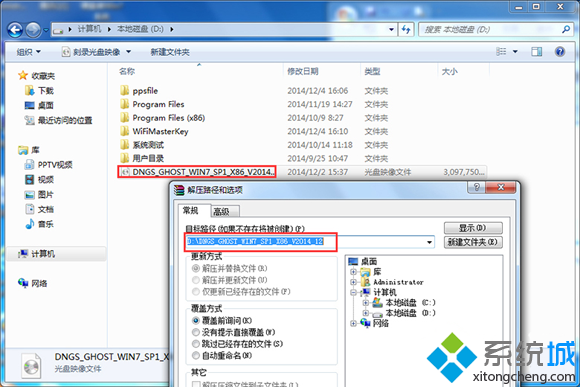
- 下載 Win7 旗艦版系統映像(建議從系統之家等知名站點下載),解壓至 D 槽等非系統碟資料夾(勿放桌面或 C 槽)。
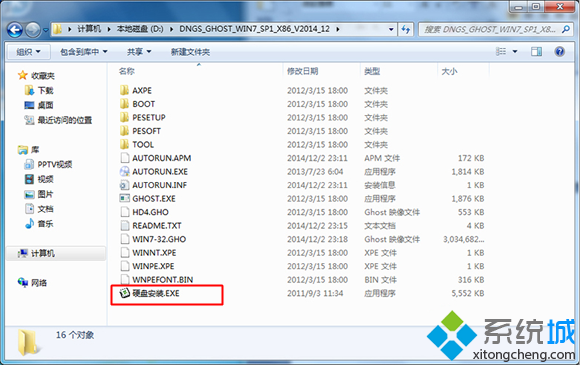
- 雙擊解壓資料夾內的
硬碟安裝.EXE (OneKey Ghost),選擇「還原分區」→ 目標分區選 C:,映像檔選 win7.gho → 執行。
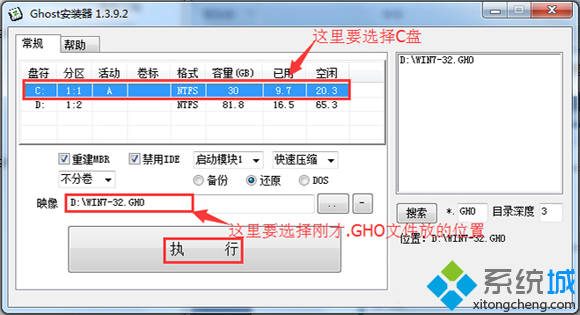
- 確認提示視窗點「是」,電腦自動重啟進入 DOS 介面格式化 C 槽並解壓映像檔。
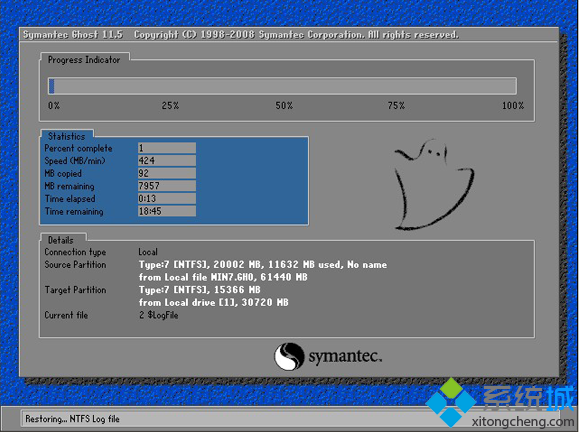
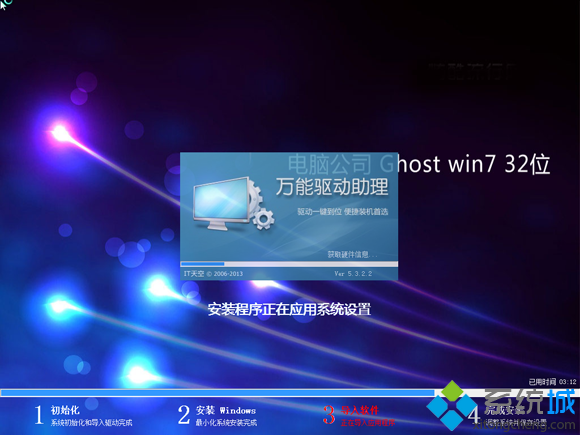
- 解壓完成後再次重啟,進入 Windows 7 微調安裝階段(裝置驅動、使用者設定、更新等)。
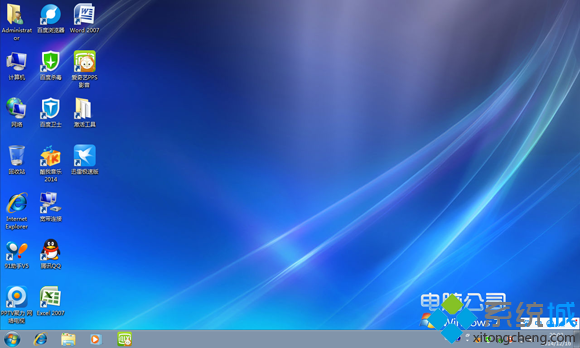
- 最終重啟進入全新 Win7 旗艦版桌面,安裝完成。
注意事項
- 執行前務必備份 C 槽重要資料,還原過程會清空 C 槽。
- 若硬碟為 GPT 分區表 (UEFI 開機),傳統 OneKey Ghost 可能不支援,需使用支援 UEFI 的工具(如 AOMEI Backupper、Hasleo Backup Suite)或改用 PE 還原。
- 安裝完成後建議:安裝主機板/顯卡驅動、Windows Update 修補、啟用防火牆、建立系統還原點。