想換掉預設藍色登入畫面?需修改登錄表並放置符合規格的圖片:
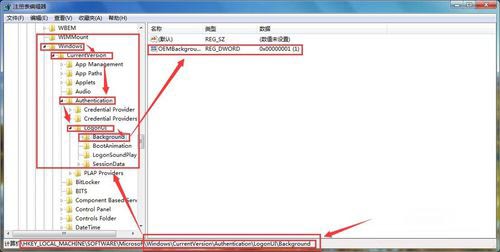
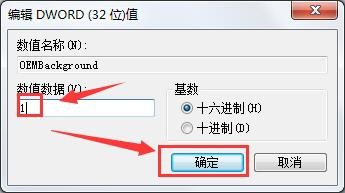
regedit → 定位:HKEY_LOCAL_MACHINE\SOFTWARE\Microsoft\Windows\CurrentVersion\Authentication\LogonUI\BackgroundOEMBackground → 數值設 1。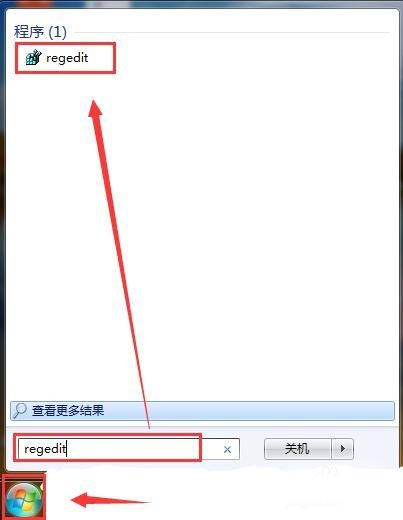
C:\Windows\System32\oobe → 新建資料夾 info → 再新建 backgrounds。backgroundDefault.jpg、大小 ≤ 256 KB、解析度建議 1920x1080 或螢幕原生解析度(用 Photoshop 壓縮品質至 200KB 內)。C:\Windows\System32\oobe\info\backgrounds\。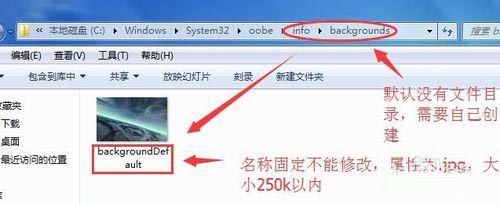
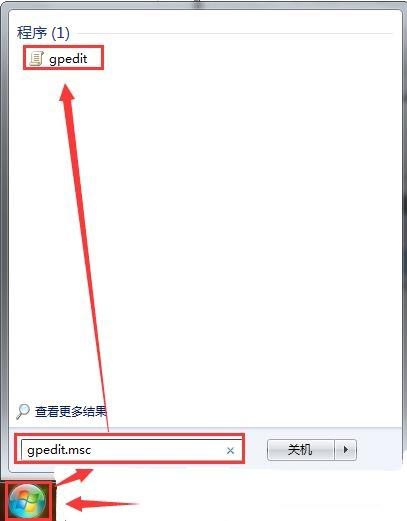
gpedit.msc →「電腦設定」→「管理範本」→「系統」→「登入」→ 雙擊 「一律使用自訂登入背景」 → 「已啟用」 → 確定。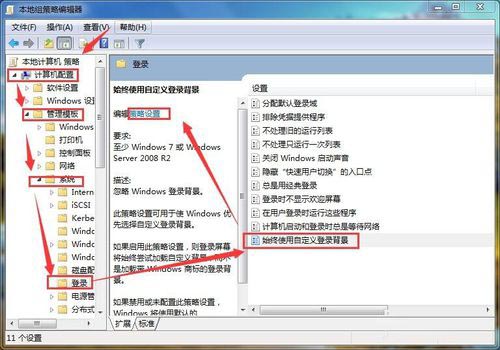
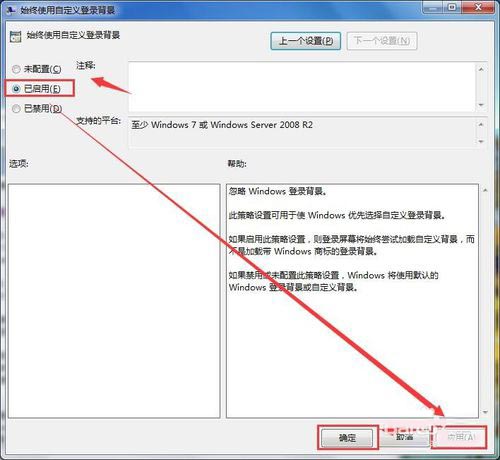
注意:圖片超過 256KB 或檔名不符將不顯示,仍為預設藍色。家用版無 gpedit.msc 可略過步驟 5(通常仍生效)。
Win7 軟體不相容解決方案:更新版本、相容模式、系統虛擬化
Win7 執行 gpedit.msc 無法開啟群組原則編輯器怎麼辦?登錄檔修正 Restrict_Run 值
雲端運算時代三巨頭決戰:微軟、Google、Apple 佈局與策略深度解析
Win 7 九大「絕不能關閉」系統服務:關閉即導致斷網、無法開機、DNS 失效、列印失效、RPC 崩潰
Win7 一鍵還原系統:系統還原功能建立還原點 → 選擇還原點 → 重啟還原,附備份工具下載連結
Win7鍵盤部分按鍵失靈怎麼辦?NumLock/Fn鍵切換、硬體清潔、驅動更新三大方案