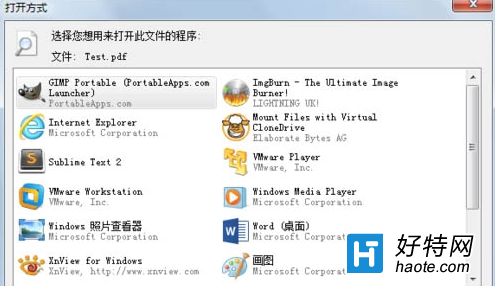
Win7 雙擊檔案彈出「選擇預設程式」但清單無適用程式,或點選「瀏覽」指定程式後不生效,通常是 HKEY_CURRENT_USER\Software\Microsoft\Windows\CurrentVersion\Explorer\FileExts\<副檔名> 下的 OpenWithList 損壞導致。
雙擊檔案 → 「選擇預設程式」→ 勾選「永遠使用選取的程式開啟此類檔案」→ 選擇/瀏覽目標程式 → 確定。
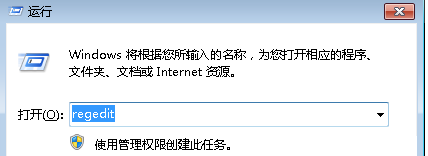
regedit → Enter。HKEY_CURRENT_USER\Software\Microsoft\Windows\CurrentVersion\Explorer\FileExts\.pdf(以 .pdf 為例,依實際副檔名調整)。OpenWithList,刪除 除了 (Default) 以外的所有字串值(如 a、b、c、MRUList 等)。OpenWithProgids 下的多餘值。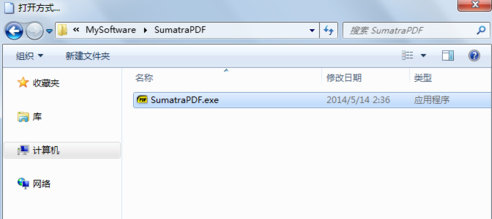
關閉註冊表,再次雙擊檔案 → 選擇預設程式 → 正常指定即可生效。
HKEY_CLASSES_ROOT\.pdf → 確認 (Default) 值指向正確 ProgID(如 AcroExch.Document.DC)。