在 Windows 7 中想打印某文件夹下的所有文件列表,系统并无直接按钮。本文提供两种方案:一是临时生成列表文件打印,二是将“打印目录列表”集成到右键“发送到”菜单,一劳永逸。
cmd)。cd 切换到目标文件夹路径。dir > contents.txtcontents.txt 文件,直接打印即可。新建文本文档,粘贴以下内容,保存为 Printdir.bat 到 C:\Windows 目录(需管理员权限):
@echo off
dir %1 /-p /o:gn > "%temp%\Listing"
start /w notepad /p "%temp%\Listing"
del "%temp%\Listing"
exit
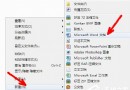
%APPDATA%\Microsoft\Windows\SendTo 回车。%windir%\Printdir.bat,下一步命名为“打印目录列表”,完成。以后右键任意文件夹 → “发送到” → “打印目录列表”,即可自动生成并打印该文件夹的文件清单。