Windows XP Windows 7 Windows 2003 Windows Vista Windows 綜合教學 Linux 系統教學
Windows 10 Windows 8 Windows 2008 Windows NT Windows Server 電腦軟體教學

Win7 開機黑屏 Error 15: File not found 修復全攻略:GRUB 指令與 MBR 重建雙管齊下

編輯:Win7 系統應用技巧

前言

Win7 開機出現黑畫面 Error 15: File not found,通常是開機載入器(GRUB/Windows Boot Manager)找不到核心映像檔(vmlinuz 或 winload.exe),原因包括:多重開機配置損毀、分區表錯誤、系統檔案遺失、病毒破壞 MBR。本文提供兩套方案:GRUB 命令列手動指定核心啟動、DiskGenius 重建 MBR,雙管齊下確保修復成功。

方案一:GRUB 命令列手動啟動(適用 GRUB 為主載入器的多重開機環境)

  1. 開機出現 GRUB 選單時,按任意鍵進入選單,再按 C 進入 GRUB 命令列。
  2. 輸入 root (hd0,0) 指定開機分區(第一顆硬碟第一個分區,依實際情況調整,如 (hd0,1))。
  3. 輸入 kernel (hd0,0)/boot/ 後按 Tab 鍵,系統列出可用核心檔案(如 vmlinuz-2.6.9-42.ELsmp)。
  4. 補全核心檔名並加入參數:
    kernel (hd0,0)/boot/vmlinuz-2.6.9-42.ELsmp ro root=LABEL=/ vga=0x317
  5. 輸入 initrd (hd0,0)/boot/initrd-2.6.9-42.ELsmp.img 載入初始化映像檔。
  6. 輸入 boot 啟動系統。
  7. 成功進入系統後,立即執行 grub-install /dev/sda 重新安裝 GRUB 至 MBR,並更新 grub.conf / menu.lst 修正永久配置。
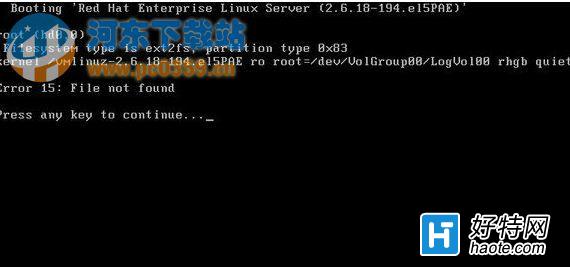
Error 15 黑畫面 GRUB 命令列介面

方案二:DiskGenius 重建 MBR(適用 Windows 單系統或 MBR 損毀)

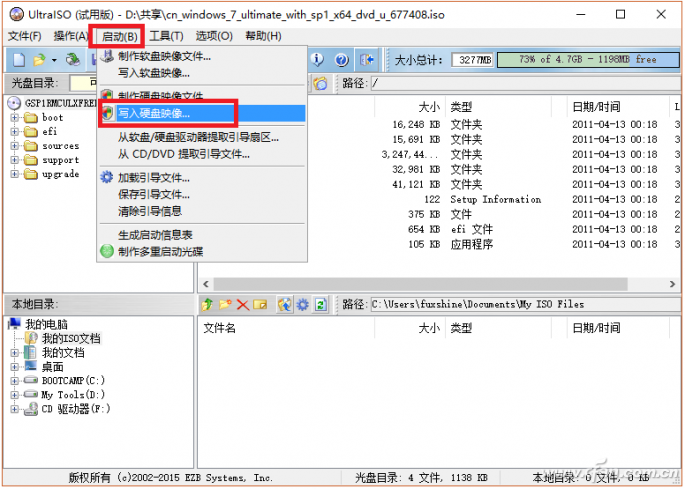
  1. 準備啟動 USB/光碟(含 DiskGenius,如 WinPE、老毛桃、微PE 等)。
  2. 開機進入 PE 環境,啟動 DiskGenius。
  3. 選中系統磁碟(通常為 HD0)。
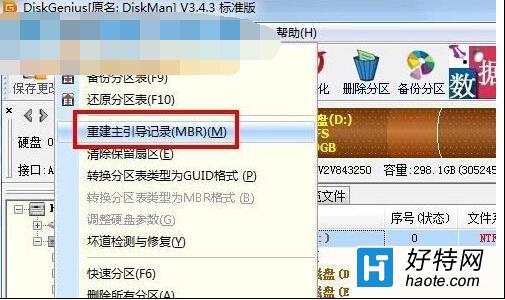
  4. 選單列 → 「硬碟」 → 「重建主開機記錄 (MBR)」。
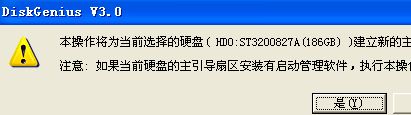
  5. 確認操作,完成後重新開機移除啟動媒體。
DiskGenius 介面 重建 MBR 選單

方案三:Windows 內建修復(若為純 Win7 環境)

  1. Win7 安裝光碟/USB 開機 → 「修復電腦」 → 「命令提示字元」。
  2. 依序執行:
    bootrec /fixmbr
    bootrec /fixboot
    bootrec /rebuildbcd
  3. 重開機驗證。

預防與備份建議

  • 使用 bcdedit /export 備份 BCD 存放區。
  • 定期製作系統映像備份(控制台 → 備份與還原 → 建立系統映像)。
  • 安裝 Linux 時勿將 GRUB 安裝至 Windows 系統分區,建議安裝至專用 /boot 分區或磁碟 MBR 並配置鏈式載入。

小結

Error 15 核心原因是載入器找不到核心映像檔路徑。GRUB 命令列手動指定可應急進入系統,DiskGenius/bootrec 重建 MBR 則能徹底修復開機結構。建議先嘗試 Windows 內建修復,失敗再上 GRUB/DiskGenius 大招。

Copyright © Windows教程網 All Rights Reserved