Windows XP Windows 7 Windows 2003 Windows Vista Windows 綜合教學 Linux 系統教學
Windows 10 Windows 8 Windows 2008 Windows NT Windows Server 電腦軟體教學

Win7 IE10 無法解除安裝?註冊表修復、安全模式、手動清理三大招

編輯:Windows 7 系統介紹

IE10 在 Win7 上若無法從「程式和功能」移除,可嘗試註冊表修復核心 DLL、安全模式解除安裝、或手動刪除檔案與登錄檔殘留。

方法一:註冊核心 DLL 修復解除安裝入口

  1. 以管理員身分開啟 CMD。
  2. 依序執行:
    regsvr32 mshtml.dll
    regsvr32 shdocvw.dll -i
    regsvr32 shell32.dll -i
  3. 重新嘗試控制台解除安裝。

方法二:安全模式解除安裝

  1. 重啟電腦連點 F8 進入「進階開機選項」→ 選擇「安全模式」。
  2. 在安全模式下進入「程式和功能」→ 檢視已安裝更新 → 找到「Windows Internet Explorer 10」→ 右鍵解除安裝。

方法三:手動徹底清理(終極方案)

  1. 刪除程式資料夾:
    C:\Program Files\Internet Explorer\(32 位)
    C:\Program Files (x86)\Internet Explorer\(64 位)
    若刪除失敗,進入安全模式或使用 Unlocker 強制刪除。
  2. 清理登錄檔:
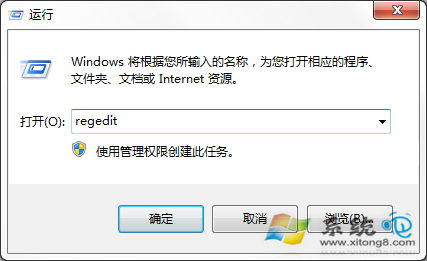
    Win+R → regedit → Ctrl+F 搜尋 Internet Explorer / IE10 關鍵字,刪除相關鍵值(重複搜尋至無結果)。
    重點路徑:HKEY_LOCAL_MACHINE\SOFTWARE\Microsoft\Windows\CurrentVersion\Uninstall
  3. 使用第三方解除安裝工具(Geek Uninstaller、Revo Uninstaller、360/管家軟體管家)掃描殘留並清理。

IE10 無法解除安裝

登錄檔 Uninstall 路徑

建議

  • Win7 現建議直接升級 IE11 或改用 Chrome/Edge/Firefox 現代瀏覽器。
  • 手動清理登錄檔風險較高,操作前務必匯出完整備份。

三大招組合拳,頑固 IE10 也能徹底移除。

Copyright © Windows教程網 All Rights Reserved