Windows XP Windows 7 Windows 2003 Windows Vista Windows 綜合教學 Linux 系統教學
Windows 10 Windows 8 Windows 2008 Windows NT Windows Server 電腦軟體教學

Windows 7 開機錯誤 0xc000000e 修復教學:使用 bcdedit 重建開機配置

編輯:Windows 7 系統介紹

無法進入安全模式、開機碼 0xc000000e 怎麼辦?

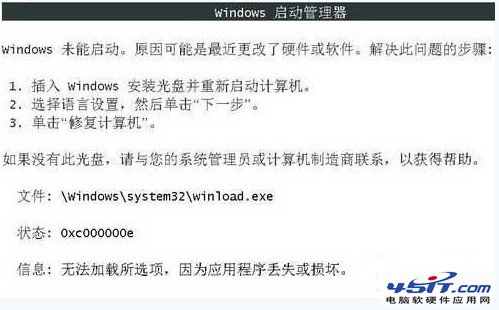
錯誤代碼 0xc000000e 表示 Windows 開機管理程式找不到作業系統載入裝置或開機配置資料 (BCD) 損毀。此時無法進入安全模式,但可透過 Windows PE (WinPE) 環境,使用 bcdedit 指令重建開機配置,避免重灌系統。

修復前準備

  • 可開機的 Windows PE USB 隨身碟(或 Windows 7 安裝光碟進入「修復電腦」→「命令提示字元」)。
  • 確認系統安裝磁碟代號(WinPE 下可能非 C:,需用 dir 確認)。

修復步驟

  1. 以 WinPE 開機,開啟「命令提示字元」。
  2. 切換至系統目錄(假設系統盤為 C:):
    cd C:\Windows\System32
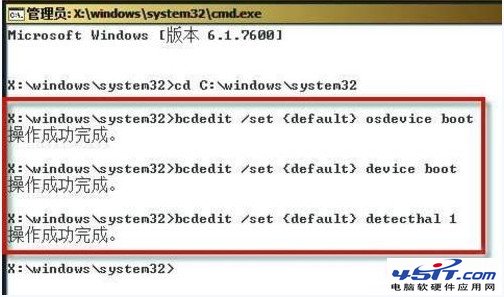
  3. 依序執行以下三條 bcdedit 指令(每行輸入完按 Enter):
    bcdedit /set {default} osdevice boot
    bcdedit /set {default} device boot
    bcdedit /set {default} detecthal 1
  4. 指令說明:
    • osdevice boot:將作業系統所在分割區設為預設開機裝置。
    • device boot:將開機載入器所在分割區設為預設。
    • detecthal 1:啟用硬體抽象層 (HAL) 自動偵測。
  5. 關閉命令提示字元,重新開機,系統應能正常啟動。
0xc000000e 錯誤畫面
命令提示字元執行 bcdedit

補充:完整 BCD 重建指令(若上述無效)

bcdedit /export C:\BCD_Backup
c:
cd boot
attrib bcd -s -h -r
ren c:\boot\bcd bcd.old
bootrec /rebuildbcd

依序執行,系統會掃描 Windows 安裝並詢問是否加入開機清單,輸入 Y 確認。

適用範圍與限制

  • 適用於 BCD 損毀、磁碟代號變更、複製系統分割區後開機失敗等情境。
  • 不適用於硬碟實體損壞、系統檔案大量遺失、惡意軟體破壞核心檔案。
  • 修復前建議先備份重要資料(透過 WinPE 複製到外接硬碟)。

幾條指令即可挽救系統,重灌前務必嘗試此法。

Copyright © Windows教程網 All Rights Reserved