Windows XP Windows 7 Windows 2003 Windows Vista Windows 綜合教學 Linux 系統教學
Windows 10 Windows 8 Windows 2008 Windows NT Windows Server 電腦軟體教學

Windows 7 校時更精準:改用 pool.ntp.org 取代預設 time.windows.com

編輯:Windows 7 系統介紹

Windows 7 內建網路校時功能,預設對時伺服器為 time.windows.com,但國內連線常不穩定、延遲高,導致校時失敗或誤差較大。改用全球通用的 pool.ntp.org 集群,可大幅提升校時成功率與精度。

設定步驟(含圖文)

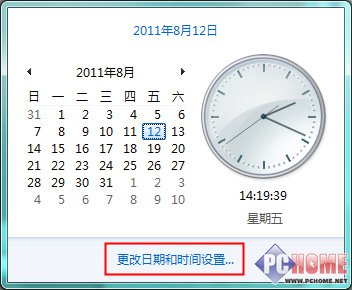
  1. 左鍵點選工作列右下角時間 → 「變更日期和時間設定」。
  2. 切換至「網際網路時間」索引標籤 → 「變更設定」。
  3. 勾選「與網際網路時間伺服器同步處理」。
  4. 伺服器欄位刪除 time.windows.com,輸入 pool.ntp.org(或 cn.pool.ntp.org 針對中國大陸節點優化)。
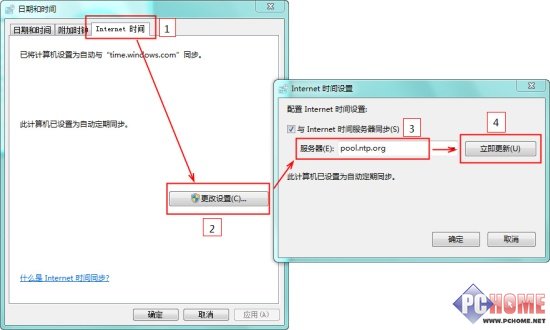
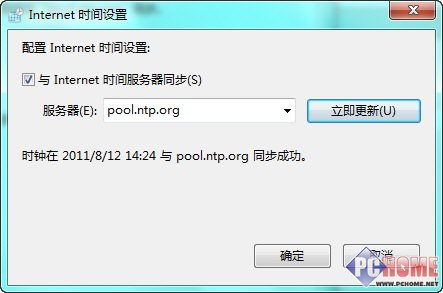
  5. 點選「立即更新」→ 顯示「同步處理成功」與時間。
  6. 確定關閉所有視窗。

日期時間設定 - 網際網路時間索引標籤

變更伺服器為 pool.ntp.org

同步成功顯示

進階:建立每日自動校時工作

預設同步頻率為每 7 天(604800 秒),若需每日校時:

  1. Win+R → taskschd.msc 開啟「工作排程器」。
  2. 右側「建立基本工作」→ 名稱:每日網路校時 → 觸發條件:「每天」→ 指定時間(如 03:00)。
  3. 動作:「啟動程式」→ 程式:w32tm → 引數:/resync。
  4. 完成。系統將每日自動執行 w32tm /resync 強制校時。

為何選 pool.ntp.org?

  • 全球超過 4000 台 NTP 伺服器組成的負載平衡集群,自動導向最近、最穩定節點。
  • 支援 IPv4/IPv6、DNS 輪詢、自動容錯移轉。
  • 被 Linux、BSD、macOS、網路設備廣泛採用為預設校時源,可靠性經實戰驗證。
  • 國內節點豐富(cn.pool.ntp.org、tw.pool.ntp.org、hk.pool.ntp.org),延遲極低。

驗證校時狀態

管理員 CMD 執行:

w32tm /query /status
w32tm /query /source

輸出應顯示 Source: pool.ntp.org、Last Successful Sync Time 為最近時間。

Copyright © Windows教程網 All Rights Reserved