Windows XP Windows 7 Windows 2003 Windows Vista Windows 綜合教學 Linux 系統教學
Windows 10 Windows 8 Windows 2008 Windows NT Windows Server 電腦軟體教學

Win7 右鍵選單新增「安全移除 USB」快捷指令

編輯:Windows 7 系統介紹

修改登錄檔在桌面右鍵選單加入「安全移除 USB」選項,點擊即開啟硬體安全移除介面,無需點擊工作列圖示。

登錄檔建立步驟

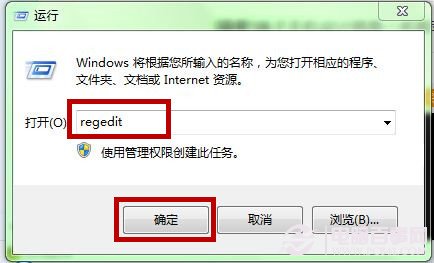
  1. Win + R 輸入 regedit
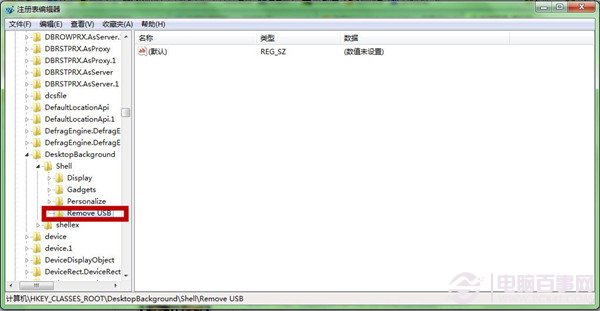
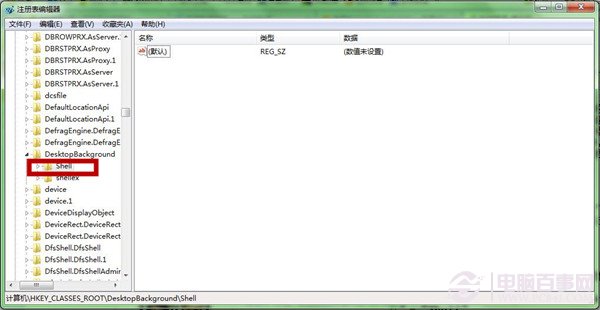
  2. 瀏覽:HKEY_CLASSES_ROOT\DesktopBackground\Shell
  3. 右鍵 Shell → 新增 → 項目 → 命名 Remove USB
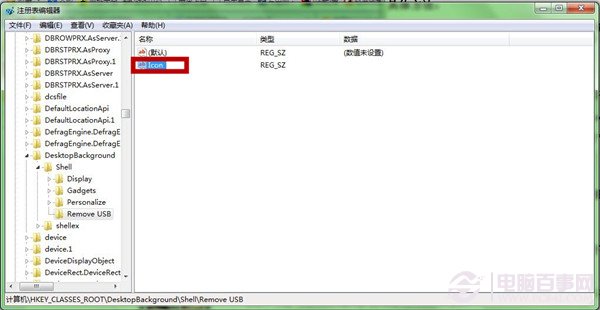
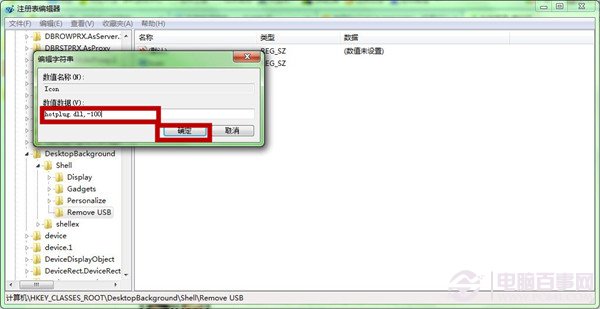
  4. 右鍵 Remove USB → 新增 → 字串值 → 命名 Icon → 數值 hotplug.dll,-100
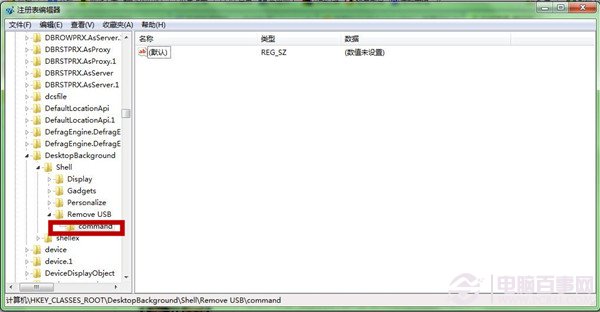
  5. 右鍵 Remove USB → 新增 → 項目 → 命名 command
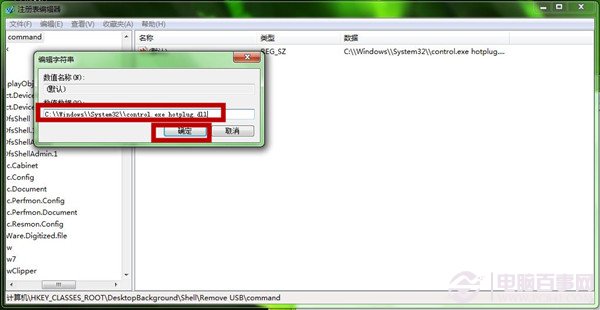
  6. 雙擊 command 預設值 → 數值資料:C:\Windows\System32\control.exe hotplug.dll
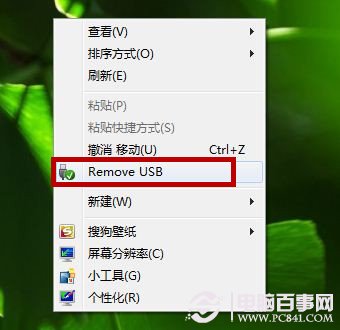
  7. 完成,無需重開機,桌面右鍵即見「Remove USB」選項

開啟登錄編輯器

瀏覽至 Shell 路徑

新增 Remove USB 項目

新增 Icon 字串值

設定 Icon 數值 hotplug.dll,-100

新增 command 子項目

設定 command 數值

桌面右鍵出現 Remove USB

原理說明

  • control.exe hotplug.dll 為 Windows 內建「安全移除硬體」介面呼叫指令
  • hotplug.dll,-100 為該介面的圖示資源索引
  • 登錄檔 DesktopBackground\Shell 為桌面背景右鍵選單擴充點

極客風格自訂右鍵選單,一鍵喚醒安全移除介面。

Copyright © Windows教程網 All Rights Reserved