許多 Windows 7 使用者在執行 Windows Update 時,常會遇到「當前無法檢查更新」的錯誤訊息(錯誤代碼通常為 80072EFE 或 8024402F),導致系統無法下載最新的安全性修補程式。這通常是因為 Windows Update 服務的快取資料損毀,或是背景智慧型傳輸服務(BITS)異常所致。透過重置更新相關服務與清除快取資料夾,即可有效解決此問題。
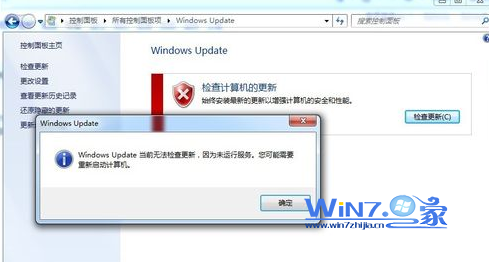
打開 Windows Update 點擊「檢查更新」後,長時間停留在檢查狀態,最終彈出錯誤視窗提示無法檢查更新,如下圖所示:
依序點選「開始」→「所有程式」→「附屬應用程式」,在「命令提示字元」上按右鍵選擇「以系統管理員身分執行」。
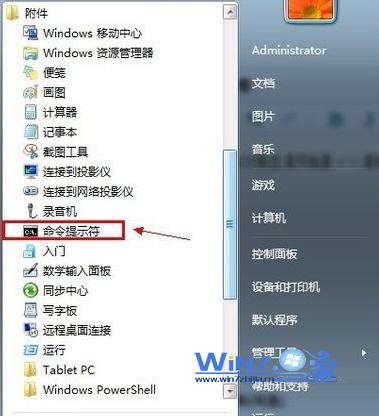
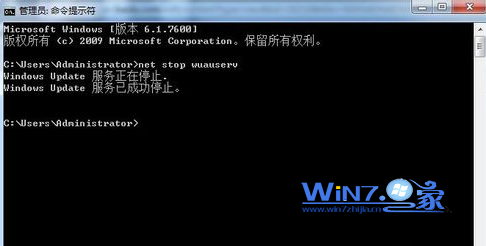
在命令提示字元視窗中輸入以下指令並按 Enter:
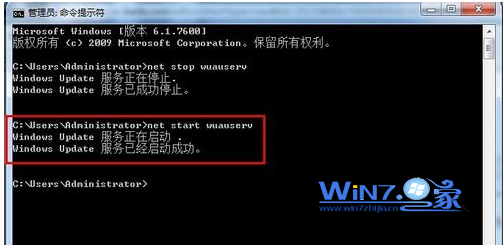
net stop wuauserv此指令會停止 Windows Update 服務(wuauserv),若顯示「Windows Update 服務已成功停止」即代表執行成功。
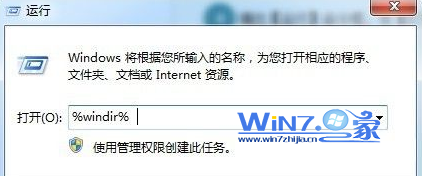
按 Win + R 開啟「執行」對話框,輸入 %windir% 並按 Enter 開啟 Windows 目錄。
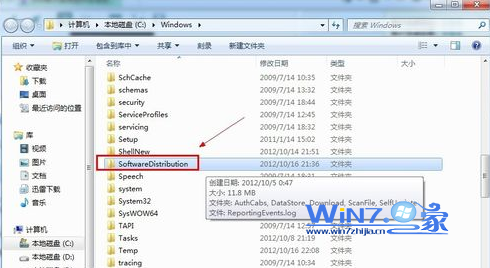
在資料夾中找到 SoftwareDistribution 資料夾,將其重新命名(例如改為 SoftwareDistribution.old)或直接刪除。此資料夾儲存 Windows Update 的暫存檔與下載快取,重新命名可強制系統建立新的乾淨快取資料夾。
回到命令提示字元視窗,輸入以下指令並按 Enter:
net start wuauserv此指令會重新啟動 Windows Update 服務,系統會自動建立新的 SoftwareDistribution 資料夾。
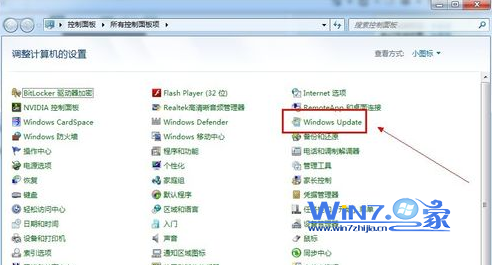
開啟控制台的「Windows Update」,點擊「檢查更新」按鈕。此時系統應能正常連線至 Microsoft 伺服器並檢查可用更新。
bits(背景智慧型傳輸服務)與 cryptsvc(加密服務),並重新命名 catroot2 資料夾。