Windows XP Windows 7 Windows 2003 Windows Vista Windows 綜合教學 Linux 系統教學
Windows 10 Windows 8 Windows 2008 Windows NT Windows Server 電腦軟體教學

Win7 安裝 Office 2007 報錯 1913 (無法更新 win.ini) 兩大解決方案

編輯:Windows 7 系統介紹

Win7 安裝 Office 2007 時彈出「錯誤 1913,安裝程式無法更新檔案 C:\Windows\win.ini」,主因是權限不足或檔案唯讀屬性導致安裝程式無法寫入系統資料夾。

方法一:以系統管理員身分執行安裝程式 (最簡單)

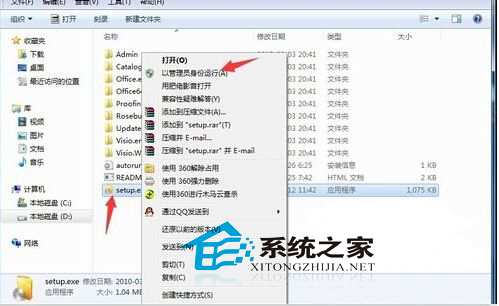
  1. 找到 Office 2007 安裝程式 (setup.exe 或光碟根目錄)。
  2. 右鍵 → 「以系統管理員身分執行」。
  3. 依精靈完成安裝,通常即可繞過權限限制。

以管理員身分執行

方法二:移除目標檔案「唯讀」屬性

  1. 開啟檔案總管,前往 C:\Windows。
  2. 找到 win.ini (若隱藏請開啟「顯示隱藏檔案」)。
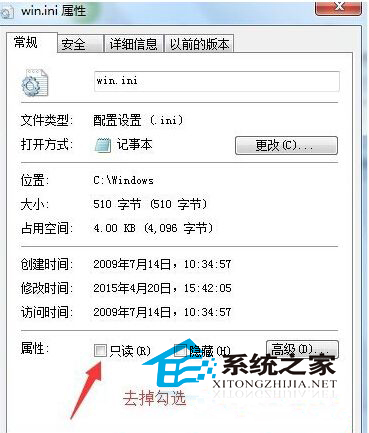
  3. 右鍵 → 「內容」 → 取消勾選 「唯讀」 → 套用 → 確定。
  4. 若提示「拒絕存取」,需進入「安全性」頁籤 → 「進階」 → 「擁有者」 → 編輯 → 選擇目前使用者/Administrators → 勾選「取代子容器和物件的擁有者」 → 確定,再回頭取消唯讀。
  5. 重新執行安裝程式 (建議同樣以管理員身分執行)。

win.ini屬性取消唯讀

根本原因與建議

  • Win7 UAC 機制限制非提權程式寫入 C:\Windows、C:\Program Files 等系統資料夾。
  • Office 2007 為舊版軟體,安裝程式未正確聲明需求提權清單 (Manifest),導致寫入 win.ini 失敗。
  • 建議: 升級至 Office 2010/2013/2016/2019/365,原生支援 Win7/10/11 且安全性、相容性大幅提升。Office 2007 自 2017 年 10 月起已停止支援,不再接收安全更新。
Copyright © Windows教程網 All Rights Reserved