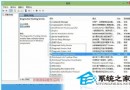
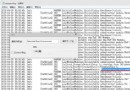
許多安裝 Windows 10 預覽版的使用者發現,桌面預設僅有「回收站」圖示,雖然可透過設定顯示其他系統圖示,但卻找不到 Internet Explorer 的選項。若您習慣使用 IE 瀏覽器,可參考以下步驟,透過修改登錄檔將 IE 圖示加回桌面。
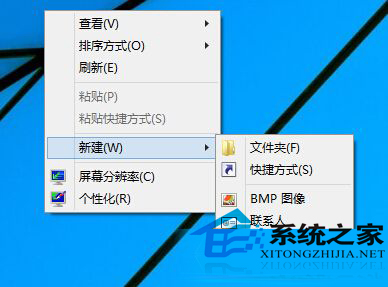
Windows Registry Editor Version 5.00
;桌面顯示IE圖示
[-HKEY_CLASSES_ROOT\CLSID\{B416D21B-3B22-B6D4-BBD3-BBD452DB3D5B}]
[-HKEY_LOCAL_MACHINE\SOFTWARE\Classes\CLSID\{B416D21B-3B22-B6D4-BBD3-BBD452DB3D5B}]
[HKEY_CLASSES_ROOT\CLSID\{B416D21B-3B22-B6D4-BBD3-BBD452DB3D5B}]
@="Internet Explorer"
[HKEY_CLASSES_ROOT\CLSID\{B416D21B-3B22-B6D4-BBD3-BBD452DB3D5B}\DefaultIcon]
@="C:\\Program Files\\Internet Explorer\\iexplore.exe,-32528"
[HKEY_CLASSES_ROOT\CLSID\{B416D21B-3B22-B6D4-BBD3-BBD452DB3D5B}\Shell]
@=""
[HKEY_CLASSES_ROOT\CLSID\{B416D21B-3B22-B6D4-BBD3-BBD452DB3D5B}\Shell\NoAddOns]
@="在沒有載入項的情況下啟動(&N)"
[HKEY_CLASSES_ROOT\CLSID\{B416D21B-3B22-B6D4-BBD3-BBD452DB3D5B}\Shell\NoAddOns\Command]
@="C:\\Program Files\\Internet Explorer\\iexplore.exe about:NoAdd-ons"
[HKEY_CLASSES_ROOT\CLSID\{B416D21B-3B22-B6D4-BBD3-BBD452DB3D5B}\Shell\Open]
@="開啟首頁(&H)"
[HKEY_CLASSES_ROOT\CLSID\{B416D21B-3B22-B6D4-BBD3-BBD452DB3D5B}\Shell\Open\Command]
@="C:\\Program Files\\Internet Explorer\\iexplore.exe"
[HKEY_CLASSES_ROOT\CLSID\{B416D21B-3B22-B6D4-BBD3-BBD452DB3D5B}\Shell\Set]
@="屬性(&R)"
;本文由 Win10 系統下載整理
[HKEY_CLASSES_ROOT\CLSID\{B416D21B-3B22-B6D4-BBD3-BBD452DB3D5B}\Shell\Set\Command]
@="Rundll32.exe Shell32.dll,Control_RunDLL Inetcpl.cpl"
[HKEY_CLASSES_ROOT\CLSID\{B416D21B-3B22-B6D4-BBD3-BBD452DB3D5B}\ShellFolder]
@="C:\\Windows\\system32\\ieframe.dll,-190"
"Attributes"=dword:00000030
"HideFolderVerbs"=""
"WantsParseDisplayName"=""
"HideOnDesktopPerUser"=""
"HideAsDeletePerUser"=""
[HKEY_LOCAL_MACHINE\SOFTWARE\Classes\CLSID\{B416D21B-3B22-B6D4-BBD3-BBD452DB3D5B}]
@="Internet Explorer"
[HKEY_LOCAL_MACHINE\SOFTWARE\Classes\CLSID\{B416D21B-3B22-B6D4-BBD3-BBD452DB3D5B}\DefaultIcon]
@="C:\\Program Files\\Internet Explorer\\iexplore.exe,-32528"
[HKEY_LOCAL_MACHINE\SOFTWARE\Classes\CLSID\{B416D21B-3B22-B6D4-BBD3-BBD452DB3D5B}\Shell]
@=""
[HKEY_LOCAL_MACHINE\SOFTWARE\Classes\CLSID\{B416D21B-3B22-B6D4-BBD3-BBD452DB3D5B}\Shell\NoAddOns]
@="在沒有載入項的情況下啟動(&N)"
[HKEY_LOCAL_MACHINE\SOFTWARE\Classes\CLSID\{B416D21B-3B22-B6D4-BBD3-BBD452DB3D5B}\Shell\NoAddOns\Command]
@="C:\\Program Files\\Internet Explorer\\iexplore.exe about:NoAdd-ons"
[HKEY_LOCAL_MACHINE\SOFTWARE\Classes\CLSID\{B416D21B-3B22-B6D4-BBD3-BBD452DB3D5B}\Shell\Open]
@="開啟首頁(&H)"
[HKEY_LOCAL_MACHINE\SOFTWARE\Classes\CLSID\{B416D21B-3B22-B6D4-BBD3-BBD452DB3D5B}\Shell\Open\Command]
@="C:\\Program Files\\Internet Explorer\\iexplore.exe"
[HKEY_LOCAL_MACHINE\SOFTWARE\Classes\CLSID\{B416D21B-3B22-B6D4-BBD3-BBD452DB3D5B}\Shell\Set]
@="屬性(&R)"
[HKEY_LOCAL_MACHINE\SOFTWARE\Classes\CLSID\{B416D21B-3B22-B6D4-BBD3-BBD452DB3D5B}\Shell\Set\Command]
@="Rundll32.exe Shell32.dll,Control_RunDLL Inetcpl.cpl"
[HKEY_LOCAL_MACHINE\SOFTWARE\Classes\CLSID\{B416D21B-3B22-B6D4-BBD3-BBD452DB3D5B}\ShellFolder]
@="C:\\Windows\\system32\\ieframe.dll,-190"
"Attributes"=dword:00000030
"HideFolderVerbs"=""
"WantsParseDisplayName"=""
"HideOnDesktopPerUser"=""
"HideAsDeletePerUser"=""
[HKEY_CURRENT_USER\Software\Microsoft\Windows\CurrentVersion\Explorer\CLSID\{B416D21B-3B22-B6D4-BBD3-BBD452DB3D5B}]
@="Internet Explorer"
[HKEY_LOCAL_MACHINE\SOFTWARE\Microsoft\Windows\CurrentVersion\Explorer\Desktop\NameSpace\{B416D21B-3B22-B6D4-BBD3-BBD452DB3D5B}]
@="Internet Explorer"顯示IE.reg,存檔類型選「所有檔案」。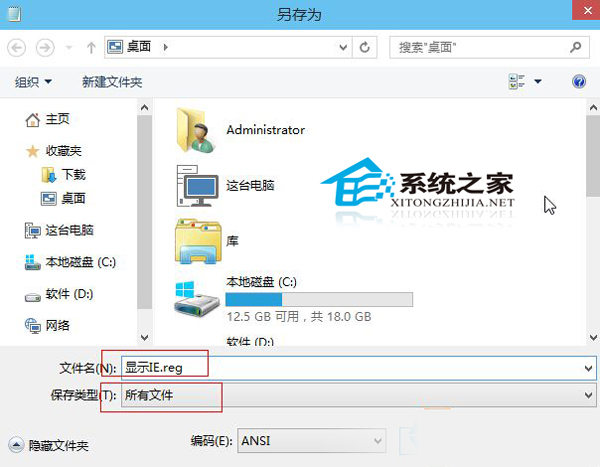
顯示IE.reg,彈出確認視窗時選擇「是」。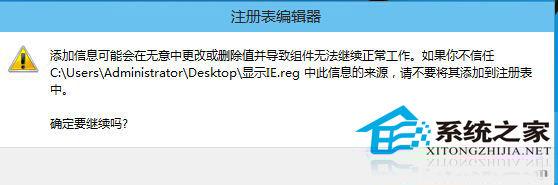
雖然國產瀏覽器功能豐富且符合國人習慣,但 IE 仍有特定相容性需求。依照上述步驟操作,即可輕鬆在 Win10 桌面喚回 IE 圖示,方便隨時啟用。