Windows XP Windows 7 Windows 2003 Windows Vista Windows 綜合教學 Linux 系統教學
Windows 10 Windows 8 Windows 2008 Windows NT Windows Server 電腦軟體教學

Win10 IE 瀏覽器開網頁白屏修復:msconfig 淨啟動排查 + 事件檢視器定位錯誤模組 + 官方修復工具

編輯:Windows 10 系統介紹

Internet Explorer 11 開啟網頁出現白屏、無回應、隨機崩潰,常因第三方服務/啟動項衝突、BHO 外掛、ActiveX 控制項、或核心模組 (mshtml.dll/ieframe.dll) 損毀。本文提供三步驟標準排查修復流程。

步驟 1:乾淨啟動排查第三方衝突 (msconfig)

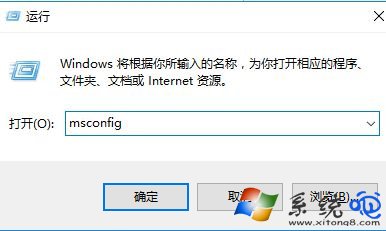
  1. Win+R → msconfig → 「服務」分頁。
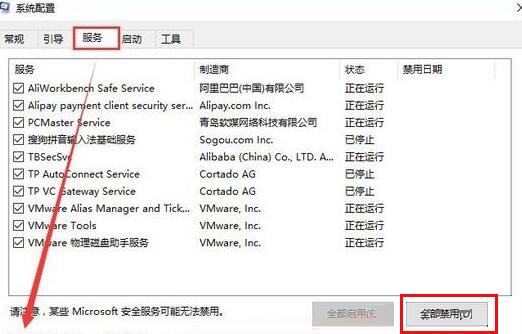
  2. ☑️ 勾選「隱藏所有 Microsoft 服務」→ 「全部停用」。
  3. 「啟動」分頁 → 「開啟工作管理員」→ 全部停用啟動項。
  4. 「確定」→ 重新開機 → 測試 IE 是否正常。

msconfig-服務分頁

停用所有非 Microsoft 服務

步驟 2:事件檢視器定位錯誤模組

  1. 乾淨啟動後問題依舊 → Win+R → eventvwr 開啟事件檢視器。
  2. 展開「Windows 記錄」→ 「系統」與「應用程式」。
  3. 篩選來源:Application Error、Internet Explorer、Windows Error Reporting。
  4. 記錄 故障模組名稱 (如 mshtml.dll、ieframe.dll、jscript9.dll、第三方 BHO DLL) 與 例外代碼 (如 0xC0000005 存取違規、0x80000003 中斷點)。
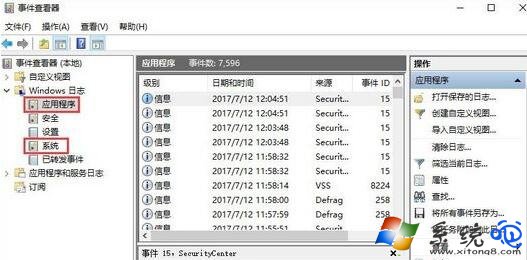

事件檢視器-Windows 記錄

Application Error 詳細資訊

步驟 3:依錯誤模組套用修復方案

  • 核心模組 (mshtml/ieframe/jscript9) 損毀:執行 sfc /scannow + DISM /Online /Cleanup-Image /RestoreHealth 修復系統檔案。
  • 第三方 BHO/工具列/安全軟體注入:在「程式和功能」移除對應軟體,或 IE「管理附加元件」停用可疑項目。
  • StackHash/AppCrash 通用崩潰:參考微軟官方修復工具 (如 IE 修復診斷) 或重設 IE 設定 (Internet 選項 → 進階 → 重設)。
  • 圖形驅動衝突:更新/重裝顯卡驅動,或 IE 關閉「使用軟體繪製而非 GPU 轉譯」 (Internet 選項 → 進階 → 瀏覽)。

進階:收集 Crash Dump 供深度分析

  1. 註冊表 HKEY_LOCAL_MACHINE\SOFTWARE\Microsoft\Windows\Windows Error Reporting\LocalDumps 新增 DumpFolder (展開字串值,如 C:\Dumps)、DumpType (DWORD, 2 = 完整傾印)。
  2. 重現崩潰後,C:\Dumps 會生成 .dmp 檔,可用 WinDbg (Preview) 開啟分析堆疊追蹤。

建議

IE 11 已於 2022/06/15 終止支援 (Win10 半年通道),強烈建議遷移至 Microsoft Edge (IE 模式相容舊系統) 或 Chrome/Firefox,獲得持續安全更新與現代網標支援。


Copyright © Windows教程網 All Rights Reserved