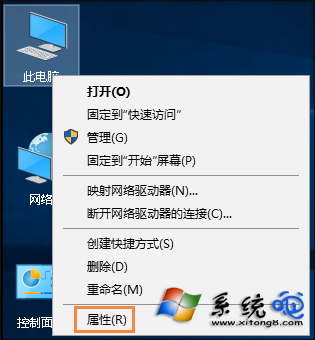
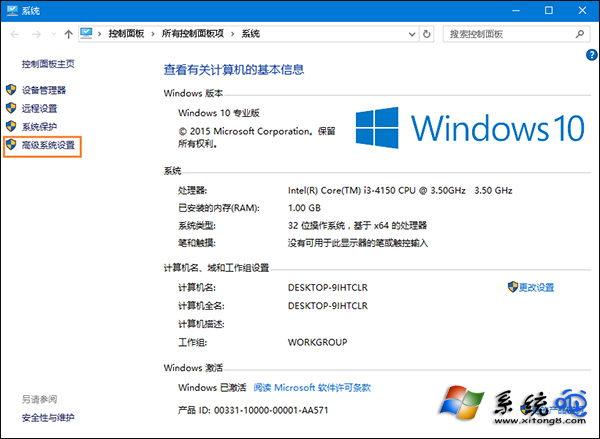
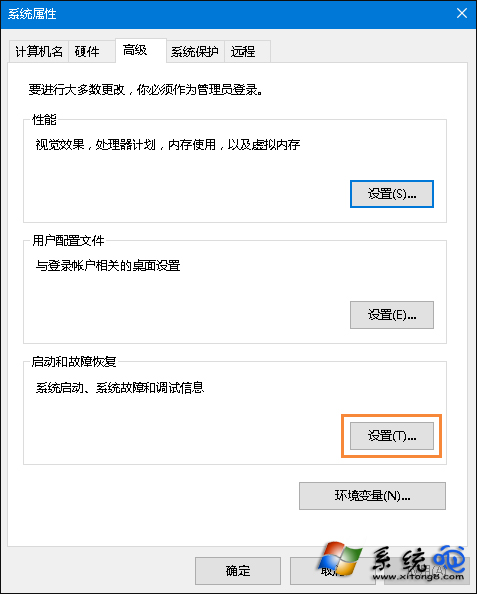
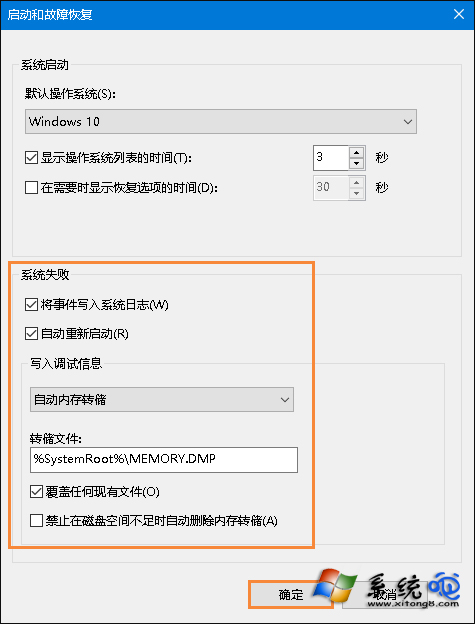
藍畫面瞬間錯誤代碼易被錯過,預先設定系統寫入傾印檔 (.dmp),事後可用 WinDbg/BlueScreenView 分析根因。
.dmp
%SystemRoot%\MEMORY.DMP
C:\Windows\MEMORY.DMP
藍畫面發生後,重開機進入系統,用分析工具開啟 MEMORY.DMP 即可查看呼叫堆疊、故障驅動程式等詳細資訊,精準定位硬體/驅動/軟體故障源頭。
MEMORY.DMP
Win10 將檔案轉為 PDF 格式:內建 Microsoft Print to PDF 虛擬印表機操作教學
Windows 10 進入安全模式的完整圖文教程
Win10 找不到 Internet Explorer?透過 Cortana 搜尋並釘選至工作列即可
Win 10 磁碟 100% 佔用導致卡頓?十大優化方案:關閉家庭群組、碎片整理、Defender、Search、Superfetch、Windows.old、自動登入、IPv6、視覺效果、虛擬記憶體
Win10 任務列音量圖標消失?教你幾步找回小喇叭
Windows 10 ntoskrnl.exe 進程佔用大量記憶體?揭秘記憶體壓縮技術
Win10 如何取消 PIN 碼登入?netplwiz 設定自動登入並移除 PIN 驗證
Win10 桌面圖示文字突然變大?進階顯示設定精準調整圖示字體大小