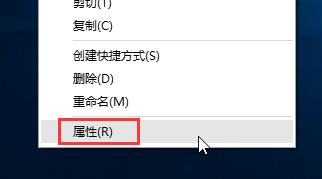
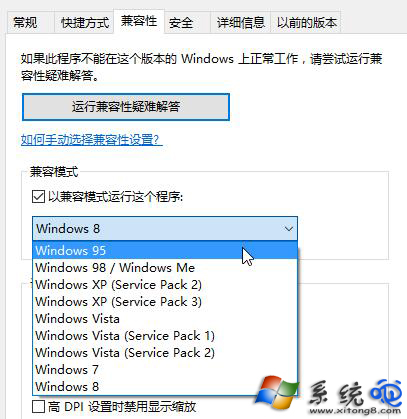
老遊戲在 Win10 執行報錯、閃退、黑畫面,多為相容性問題。右鍵遊戲執行檔/捷徑 → 「內容」→「相容性」→ 勾選「以相容模式執行這個程式」→ 選「Windows 7」或「Windows XP (Service Pack 3)」,多數即可正常執行。
若仍失敗,嘗試:① 官方修補程式/社群補丁 ② 虛擬機安裝舊版 Windows ③ 啟用「Windows 功能」→「舊版元件」→「DirectPlay」。Steam 遊戲可在屬性→「相容性」→「強制使用特定相容性工具」選 Proton/舊版。
Win10 右鍵「新增」無「資料夾」?修正 New 鍵值 GUID 恢復選單
Windows 10 寬頻撥號連線在哪?控制台網路連線 / 工作列網路圖示 / 建立桌面捷徑三種找法
Win10 螢幕閃爍怎麼辦?調整顯示器重新整理率至最佳支援值解決
Windows 10「無法開啟這個應用程式」?啟用 UAC 即可解決
Windows 10 小娜 只聽你的話:語音喚醒專屬聲紋訓練完整教學
Win10 雙顯示卡切換設定教學(針對遊戲效能優化)
Win10 更新歷史記錄消失?恢復服務與停用清理工具即可解決
Win10 更新 KB3081424 安裝失敗怎麼辦?手動下載與註冊表清理解決