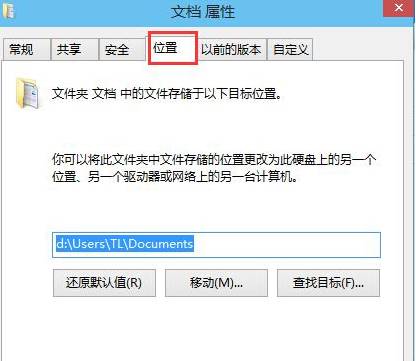
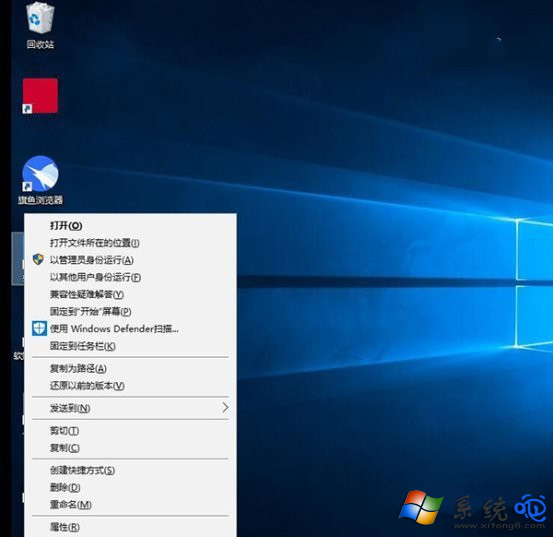
Windows 10 預設右鍵選單沒有「複製路徑」選項,每次都要進入檔案總管位址列複製非常麻煩。本文提供兩種方法:臨時用 Shift+右鍵快速叫出,或修改登錄檔永久加入右鍵選單,滿足不同使用習慣。
Windows Registry Editor Version 5.00

[HKEY_CLASSES_ROOT\AllFilesystemObjects\shell\windows.copyaspath]
"CanonicalName"="{707C7BC6-685A-4A4D-A275-3966A5A3EFAA}"
"CommandStateHandler"="{3B1599F9-E00A-4BBF-AD3E-B3F99FA87779}"
"CommandStateSync"=""
"Description"="@shell32.dll,-30336"
"Icon"="imageres.dll,-5302"
"InvokeCommandOnSelection"=dword:00000001
"MUIVerb"="@shell32.dll,-30329"
"VerbHandler"="{f3d06e7c-1e45-4a26-847e-f9fcdee59be0}"
"VerbName"="copyaspath"copyaspath.reg(編碼選 ANSI 或 UTF-8,副檔名必須為 .reg)。explorer.exe 即可在右鍵選單看到「複製為路徑」。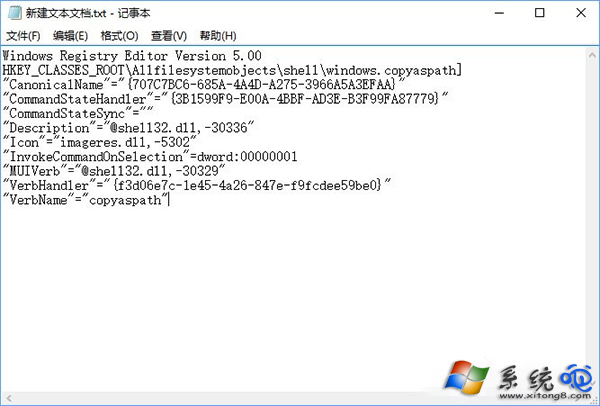


若不再需要,開啟登錄檔編輯器 (regedit),刪除鍵值 HKEY_CLASSES_ROOT\AllFilesystemObjects\shell\windows.copyaspath 即可。