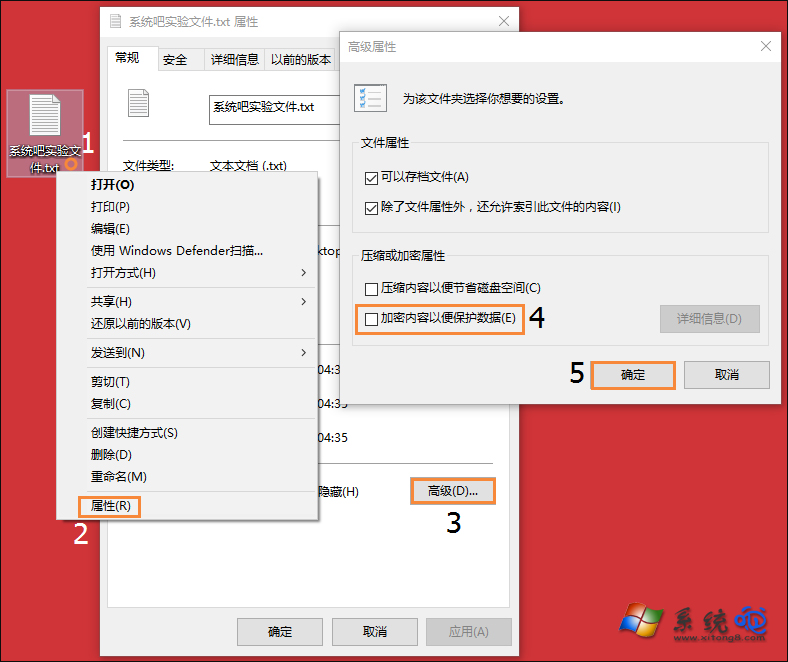
Windows 內建 EFS (Encrypting File System) 可透明加密 NTFS 磁碟上的檔案,僅持有憑證的使用者能存取。預設需「右鍵→內容→進階→勾選加密」多步驟操作。透過登錄表新增 EncryptionContextMenu 值,可將「加密」/「解密」直接加入右鍵選單,一鍵完成。
regedit,導航至 HKEY_CURRENT_USER\Software\Microsoft\Windows\CurrentVersion\Explorer\Advanced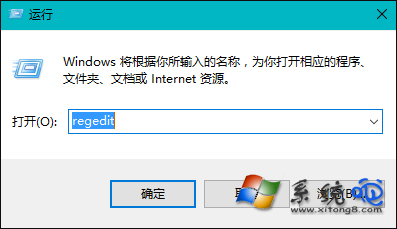
EncryptionContextMenu,數值設為 1。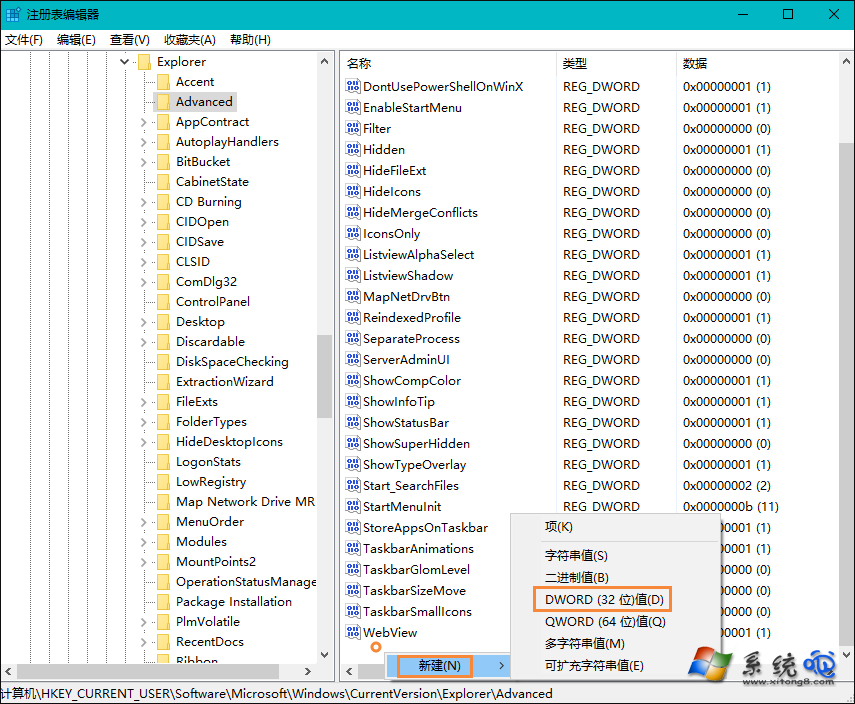
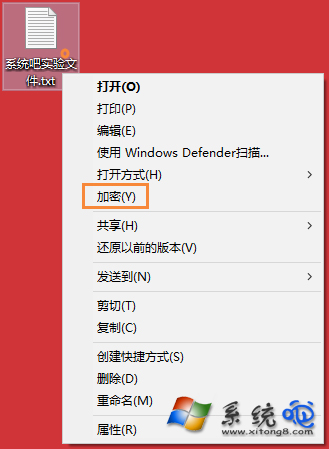
重要提醒:EFS 加密檔案僅能在同一 Windows 安裝環境下、同一使用者憑證下存取。重裝系統、移至其他電腦、或遺失使用者憑證(C:\Users\使用者名\AppData\Roaming\Microsoft\SystemCertificates\My\Certificates)將導致資料永久無法解密。重要資料請務必備份憑證(certmgr.msc 匯出)或改用 BitLocker 磁碟加密、VeraCrypt 容器加密等更健全方案。