Windows XP Windows 7 Windows 2003 Windows Vista Windows 綜合教學 Linux 系統教學
Windows 10 Windows 8 Windows 2008 Windows NT Windows Server 電腦軟體教學

Win10 更新錯誤 0x800706D9 修復:啟用 Internet Connection Sharing (ICS) 與 Windows Firewall 服務

編輯:Windows 10 系統介紹

執行 Windows Update 時出現 0x800706D9,主因為相依服務 Internet Connection Sharing (ICS) 與 Windows Firewall 未啟動。Windows Update 透過 ICS 建立臨時網路共用下載內容,防火牆提供連線過濾,兩服務任一停用即觸發此錯誤碼。
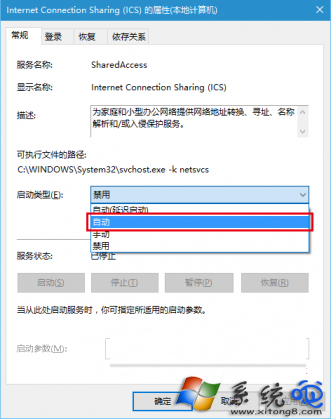
修復步驟 (服務管理員)

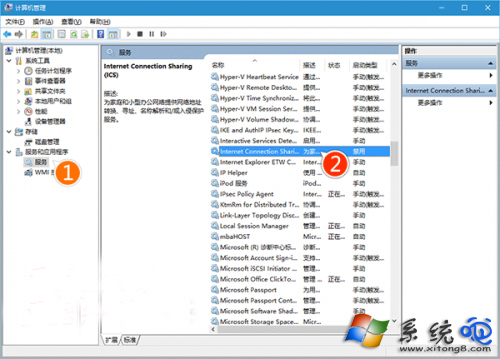
  1. Win+X → 「電腦管理」 → 「服務與應用程式」 → 「服務」。
  2. 找到 Internet Connection Sharing (ICS) → 雙擊 → 啟動類型設為 「自動」 → 「啟動」 → 確定。
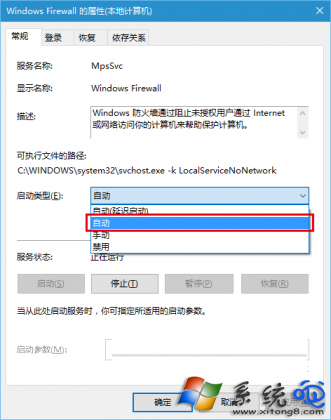
  3. 找到 Windows Firewall → 雙擊 → 啟動類型設為 「自動」 → 「啟動」 → 確定。
  4. 重新開機 → 再次執行 Windows Update。

ICS 服務屬性

ICS 設為自動並啟動

Windows Firewall 設為自動並啟動

命令列快速修復 (管理員)

sc config SharedAccess start= auto & net start SharedAccess
sc config MpsSvc start= auto & net start MpsSvc
# SharedAccess = ICS, MpsSvc = Windows Firewall

根因分析

  • 第三方優化軟體 (360、CCleaner、Advanced SystemCare) 常將 ICS 設為「手動」或「停用」以「節省資源」。
  • 企業群組原則可能強制停用防火牆服務 (若由硬體防火牆統一管理),導致更新失敗。
  • 手動執行 net stop mpssvc 測試規則後忘記重啟。

驗證建議

修復後執行 Get-Service SharedAccess, MpsSvc | Select-Object Name, Status, StartType 確認兩服務均為 Running / Automatic,再執行更新。

將 ICS 與 Windows Firewall 服務設為「自動」並啟動,即可徹底解決 Win10 更新錯誤 0x800706D9。

Copyright © Windows教程網 All Rights Reserved