Windows XP Windows 7 Windows 2003 Windows Vista Windows 綜合教學 Linux 系統教學
Windows 10 Windows 8 Windows 2008 Windows NT Windows Server 電腦軟體教學

Win10 以系統管理員身分開啟命令提示字元 (CMD) 三大法

編輯:Windows 10 系統介紹

系統管理員權限的 CMD 是進階疑難排解、系統管理的必備工具。除「執行」輸入 cmd 後 Ctrl+Shift+Enter 外,另有三種常用開啟方式:

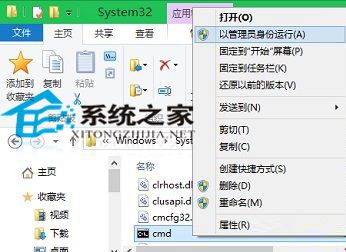
方法一:從 System32 目錄直接啟動

  1. 開啟檔案總管前往 C:\Windows\System32。
  2. 找到 cmd.exe,右鍵 → 「以系統管理員身分執行」。

System32 目錄 cmd.exe

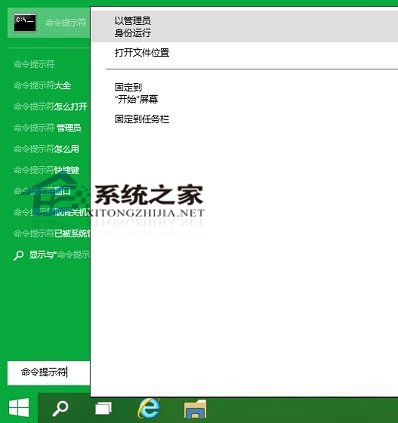
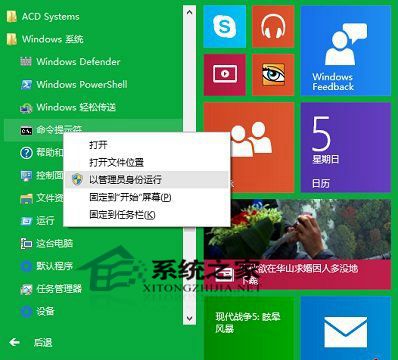
方法二:從開始選單搜尋/所有應用程式啟動

  1. 點擊「開始」 → 搜尋列輸入 cmd → 搜尋結果「命令提示字元」右鍵 → 「以系統管理員身分執行」。
  2. 或:「開始」 → 「所有應用程式」 → 「Windows 系統」 → 「命令提示字元」右鍵 → 「以系統管理員身分執行」。

搜尋 CMD 以管理員執行

所有應用程式中啟動

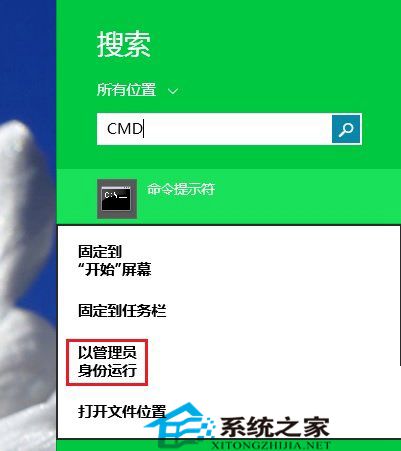
方法三:透過 Charms 搜尋 (Win+C) 啟動

  1. 按 Win+C 開啟 Charms 列 → 「搜尋」。
  2. 輸入 cmd → 結果「命令提示字元」右鍵 → 「以系統管理員身分執行」。

Charms 搜尋 CMD

補充

Win10 CMD 新增支援 Ctrl+V 貼上、Ctrl+C 複製、選取標記模式等現代化功能,大幅提升指令操作效率。

Copyright © Windows教程網 All Rights Reserved