Windows XP Windows 7 Windows 2003 Windows Vista Windows 綜合教學 Linux 系統教學
Windows 10 Windows 8 Windows 2008 Windows NT Windows Server 電腦軟體教學

Windows 10 修改註冊表提高桌面圖示重繪速度 (Max Cached Icons)

編輯:Windows 10 系統介紹

桌面放置大量捷徑/檔案導致開機/重整桌面圖示緩慢,可透過註冊表擴大圖示快取大小 (Max Cached Icons) 加速重繪。

操作步驟

  1. Win+R → regedit 開啟註冊表編輯器。
  2. 定位 HKEY_LOCAL_MACHINE\SOFTWARE\Microsoft\Windows\CurrentVersion\Explorer。
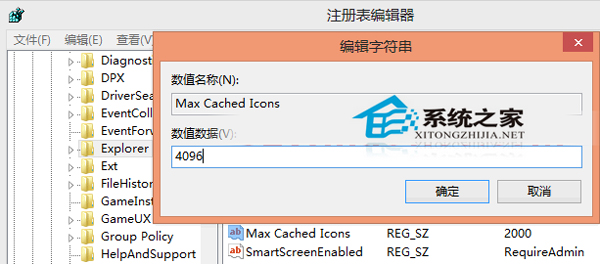
  3. 右側找 Max Cached Icons (字串值),不存在則右鍵新增字串值命名為 Max Cached Icons。
  4. 雙擊修改數值資料為 4096 (4 MB) 或更大,上限 8192 (8 MB)。
  5. 重新登入或重啟 explorer.exe 生效。

註冊表 Max Cached Icons 設定 4096

原理:Windows 使用圖示快取避免重複讀取 .exe/.dll 圖示資源。預設快取較小 (約 500 KB),桌面圖示多時頻繁換入換出導致延遲。擴大快取可減少磁碟 I/O,提升重繪流暢度。建議搭配「整理桌面、善用資料夾分類」從根本減少圖示數量。

Copyright © Windows教程網 All Rights Reserved