Windows XP Windows 7 Windows 2003 Windows Vista Windows 綜合教學 Linux 系統教學
Windows 10 Windows 8 Windows 2008 Windows NT Windows Server 電腦軟體教學

Windows 10 設定自動關機排程教學 (工作排程器)

編輯:Windows 10 系統介紹

Windows 10 內建「工作排程器」可建立自動關機任務,無需第三方軟體,適合定時下載完成、夜間備份後關機等場景。
操作步驟

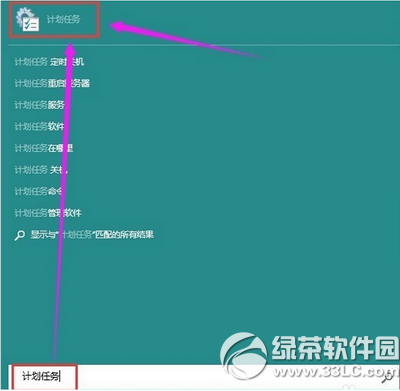
  1. 開始功能表搜尋「工作排程器」或「Task Scheduler」開啟。

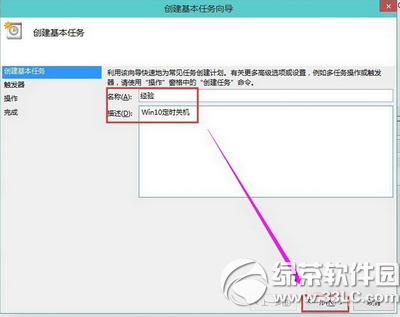
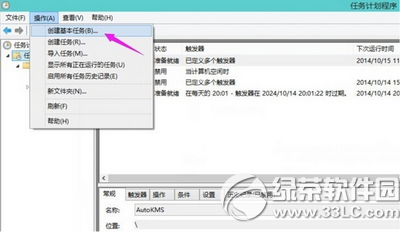
  1. 右側「動作」面板點擊「建立基本工作」。

  1. 輸入名稱 (如「每晚自動關機」)、描述 →「下一步」。

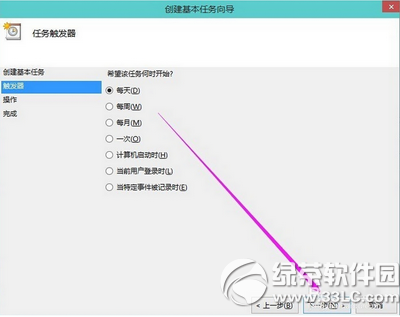
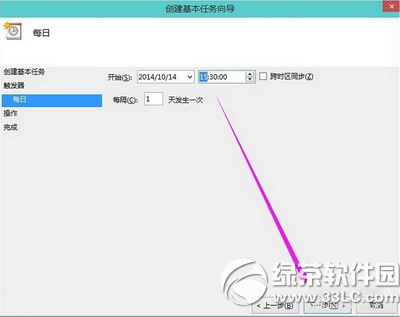
  1. 觸發條件選擇「每天」→ 設定具體時間 (如 23:30) →「下一步」。

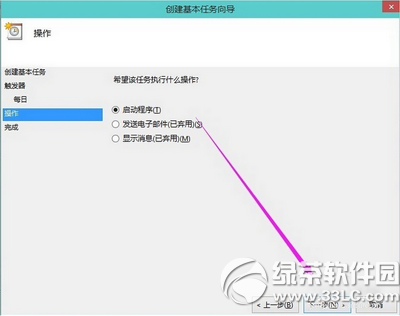
  1. 動作選擇「啟動程式」→「下一步」。

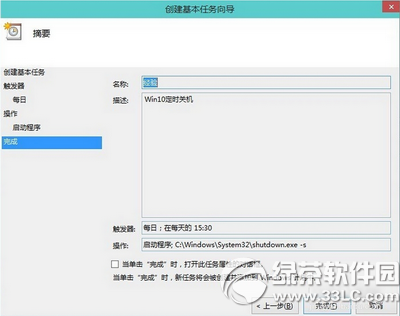
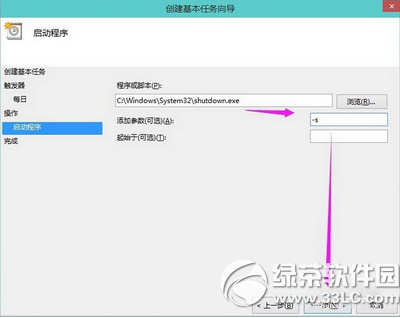
  1. 程式/指令碼:C:\Windows\System32\shutdown.exe
    引數:/s /t 0 (立即關機) 或 /s /t 60 (60 秒後關機,給予緩衝) →「下一步」。
  1. 確認摘要 →「完成」。任務將在設定時間自動執行關機。

常用 shutdown 參數

參數說明
/s關機
/r重新開機
/h休眠
/t xxx等待秒數 (預設 30 秒)
/f強制關閉應用程式 (不提示儲存)
/a中止關機 (在等待期間執行)

臨時一次性關機指令

執行 shutdown /s /t 3600 (1 小時後關機),或建立桌面捷徑指向 shutdown.exe /s /t 0 一鍵關機。

Copyright © Windows教程網 All Rights Reserved