在 Win 10 跑 Android 模擬器推薦微軟官方 Visual Studio Emulator for Android,效能優於傳統 HAXM 方案,完整設定流程:
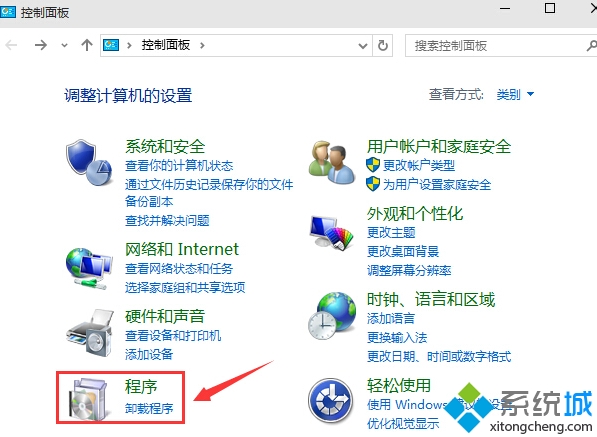
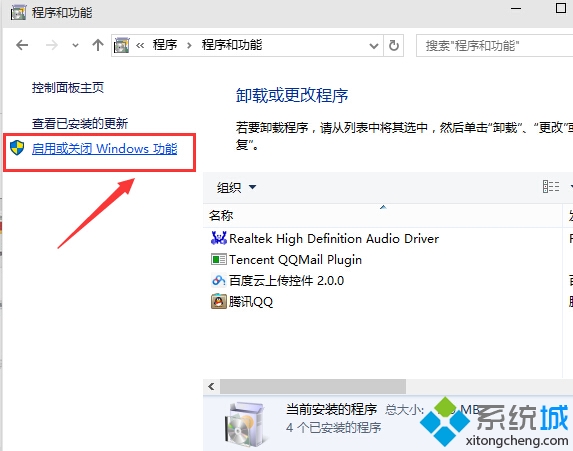
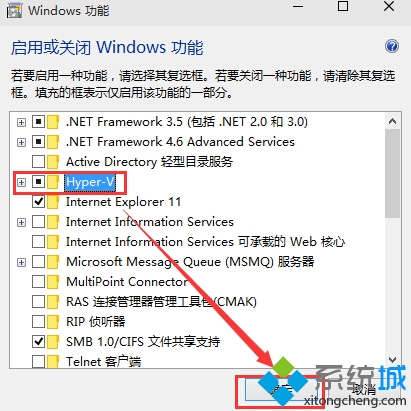
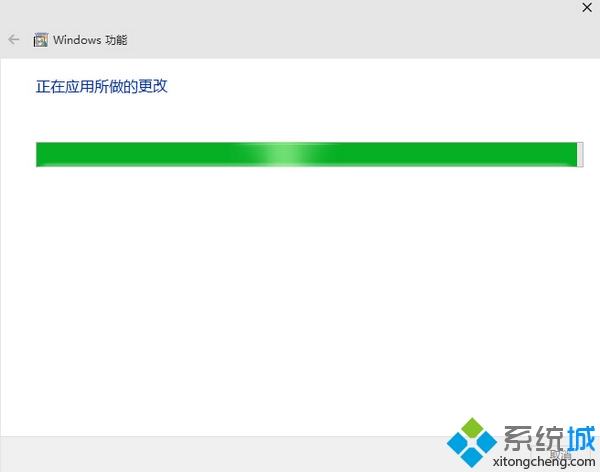
控制台 → 「程式和功能」→ 「啟用或關閉 Windows 功能」→ 勾選 Hyper-V 全部子項 → 確定 → 重開機。
下載 vs_emulatorsetup.exe (約 40 MB) 安裝,預設線上下載 API 19 (Android 4.4) x86 映像,安裝完成**必須重開機**(自動加入 Hyper-V Administrators 群組)。
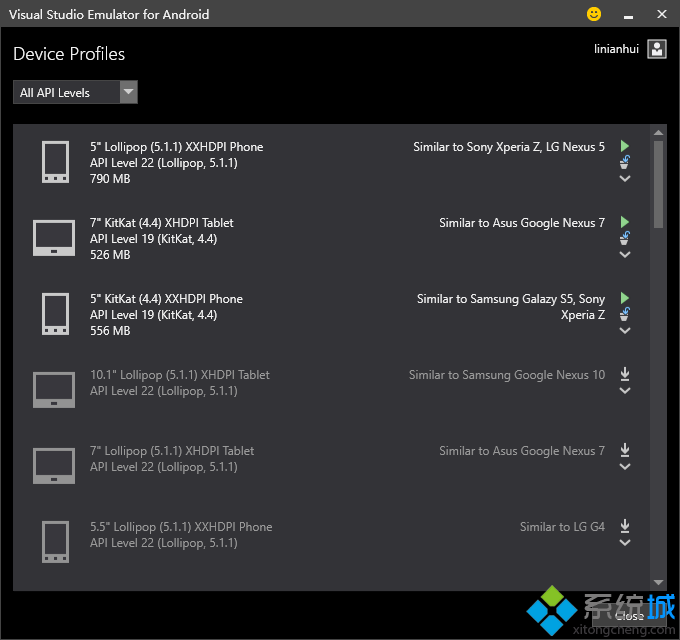
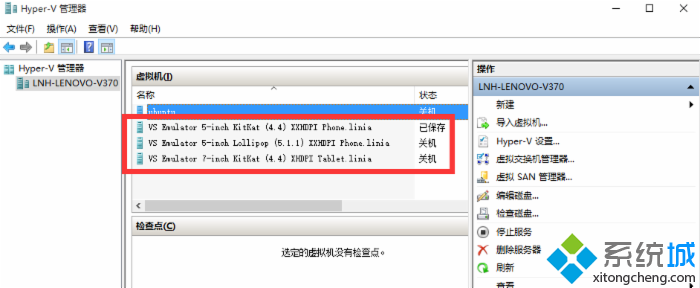
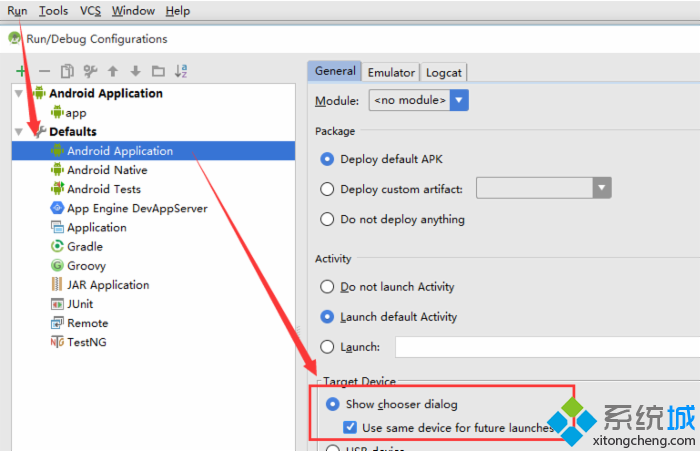
Android Studio → Run → Edit Configurations → Defaults/Android Application/General → Target Device 勾選 Show chooser dialog 與 Use same device for future launches → Apply/OK。
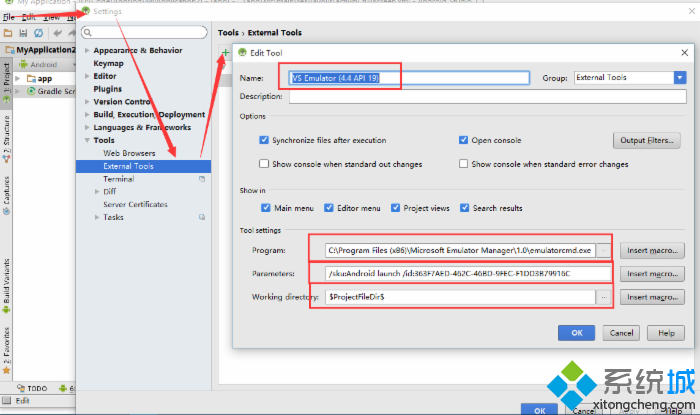
File → Settings → External Tools → Add:
Name: 自訂 (如 VS Emulator (4.4 API 19))
Program: 模擬器執行檔路徑
Parameters: 對應裝置 ID
Working directory: 模擬器安裝目錄
此模擬器獨立於 Visual Studio,支援 Android Studio 透過 ADB 連接,效能強勁、相容性佳。