Windows XP Windows 7 Windows 2003 Windows Vista Windows 綜合教學 Linux 系統教學
Windows 10 Windows 8 Windows 2008 Windows NT Windows Server 電腦軟體教學

Win10 開始選單無法開啟?重新啟動桌面視窗管理器進程修復

編輯:Windows 10 系統介紹

Windows 10 開始選單點擊無反應、無法開啟,常因「桌面視窗管理器」(DWM) 進程異常。在工作管理器重新啟動該進程可快速修復,無需重開機。

修復步驟

  1. 儲存所有工作,關閉應用程式回桌面。
  2. Ctrl+Shift+Esc 開啟工作管理器 → 「詳細資料」索引標籤。
  3. 找到 Desktop Window Manager (中文顯示「桌面視窗管理器」),右鍵 → 「結束工作」。
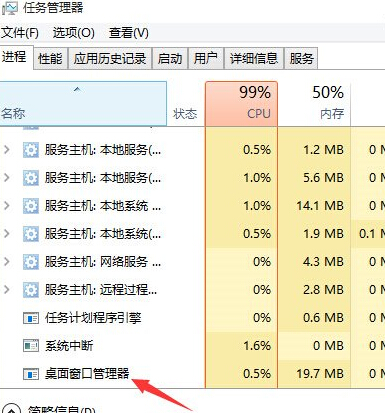
工作管理器 結束桌面視窗管理器

  1. 彈出確認視窗勾選「放棄未儲存的資料並關閉」→ 「關閉」。
  2. 螢幕閃爍後 DWM 自動重啟,開始選單恢復正常。
若仍無效: 以管理員身分執行 PowerShell 執行:
Get-AppXPackage -AllUsers | Foreach {Add-AppxPackage -DisableDevelopmentMode -Register "$($_.InstallLocation)\AppXManifest.xml"}

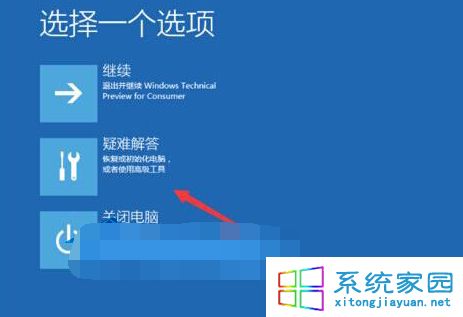
重新註冊所有 UWP 應用(含開始選單/搜尋/Cortana 核心元件)。
Copyright © Windows教程網 All Rights Reserved